Reservations & Availability
Configure weekly shifts
Create, review, edit, and delete weekly service windows that control normal reservation hours, repeat days, table availability, and capacity.
What weekly shifts control
Weekly shifts define the restaurant's normal reservation schedule. A shift has service hours, repeat days, experience table availability, and capacity rules.
Use shifts for recurring patterns such as dinner service, lunch service, brunch, or a fixed weekly tasting menu. Use Special Days instead when one date or date range should replace the normal weekly pattern.
Create a shift
Open Settings and select Shifts. Choose Add Shift to open Add New Shift.
Enter a Shift Name that matches the restaurant's operations, such as Dinner, Lunch, Weekend Brunch, or Chef Counter. Choose Start Time and End Time from the time selectors. Times are selectable in 15-minute increments across the business-day timeline from 05:00 through 04:45, so an overnight shift such as 23:00 to 04:45 is valid.
Choose the Repeats On days for the shift. A new shift starts with weekdays selected, but you can add or remove any day. The same shift appears on every selected day.
The form must have a name, at least one repeat day, and an end time that is later than the start time in the business-day timeline. Shift names must be unique, and a shift cannot overlap another shift on a shared weekday. Adjacent shifts are allowed, and the same hours are allowed on different days when the selected weekdays do not overlap.
Make the shift bookable
A shift can be saved before it is bookable. If no tables are assigned, the dialog shows This shift is not bookable yet, and the page shows a warning such as 1 shift is not bookable yet. Add table availability to activate bookings.
Use Table Availability by Experience to decide which tables each experience can use during this shift. Choose Manage Tables on an experience row, then:
- search by table name
- filter by area
- use Add visible or Clear visible for the current filtered view
- use Add all or Clear area for a whole area
- select or clear individual table checkboxes
Each experience row shows selected table count and Max capacity. If that experience has no selected tables, it shows Not bookable for this shift. The shift-level Bookable state appears when at least one experience has at least one selected table, but any experience with zero selected tables still will not generate slots for that experience.
Set capacity control
Use Capacity Control after table availability is assigned. Table availability decides which inventory can be used; capacity control decides how much of that inventory is exposed.
Choose Static for full shift to apply one percentage for the whole shift. It can target the Whole restaurant or Specific areas.
Choose Interval-based timeline to apply percentages by time block. Select 15 minutes, 30 minutes, or 60 minutes granularity, then target the Whole restaurant or one Specific area. In interval mode, slot values are used directly and static settings are ignored.
Use 100% for normal availability, lower percentages to hold back inventory, and 0% to block capacity for the selected restaurant, area, or interval.
Edit or delete a shift
On desktop, click a shift block in the weekly calendar to open Edit Shift. On mobile, the page switches to an agenda: choose a day tab, then tap the shift card to edit it.
Update the name, time range, repeat days, table availability, or capacity control, then save the changes. Editing keeps the same validation rules as creating: no blank name, no duplicate name, at least one repeat day, a valid time range, and no overlap with another shift on the same selected day.
To remove a shift, open it in edit mode, choose Delete, then confirm Delete shift?. Deleted shifts are removed from the weekly calendar and no longer create normal weekly availability.
Review the calendar and agenda
Use the calendar to confirm that shifts appear on the intended days. If a day has no shift, normal weekly availability will not exist for that day unless a special-day override adds it.
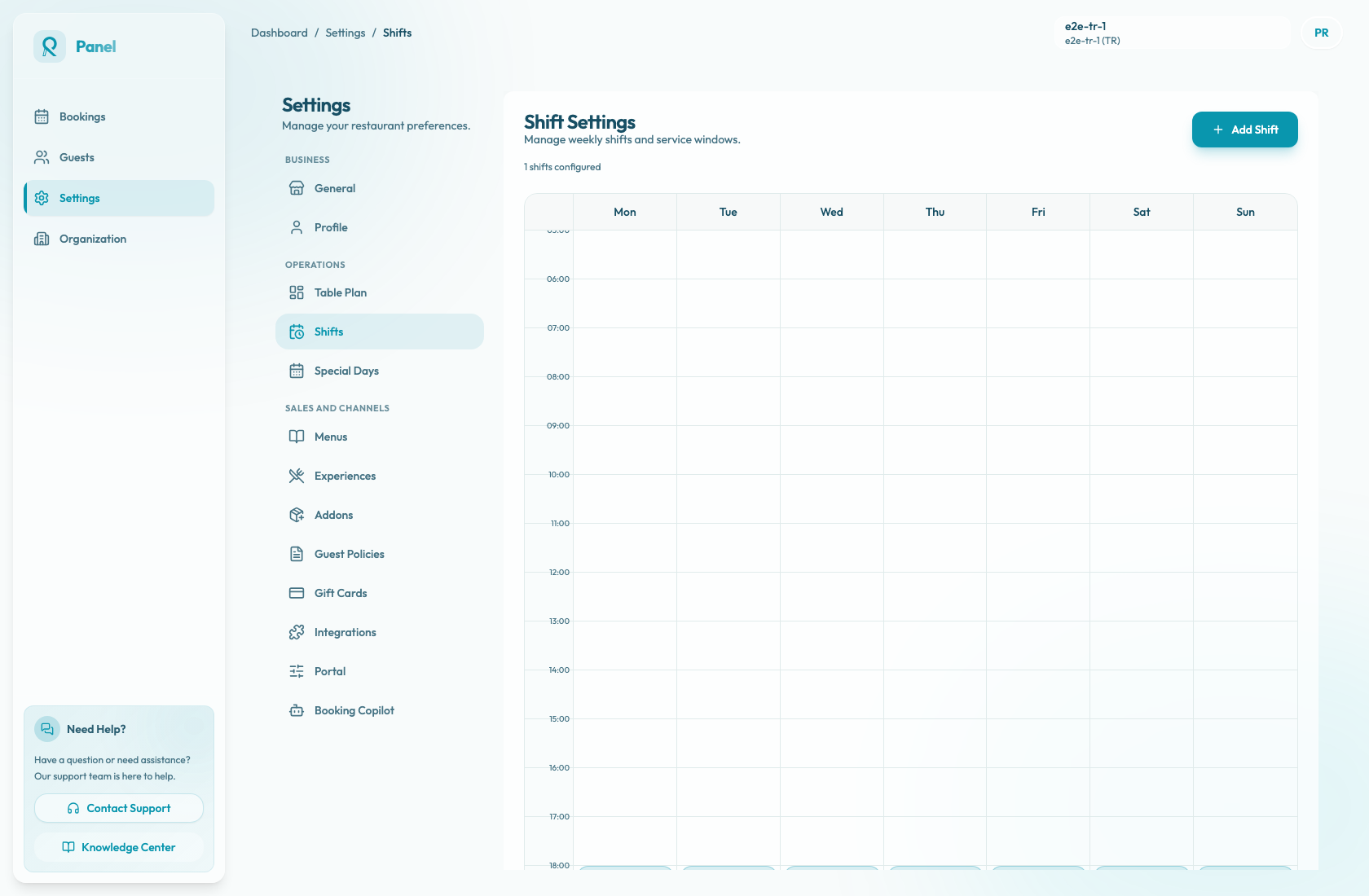
On desktop, the weekly calendar shows seven day columns and a time axis from early service through after midnight. Shifts are sorted by start time within each day. Shifts without table availability are labeled Not bookable on the calendar.
On mobile, use the day buttons to move through the agenda. Each day button shows how many shifts are configured for that day. If the selected day has no shifts, the empty state prompts the team to use Add Shift.
If the same service uses different hours on different days, create separate shifts rather than stretching one shift across mismatched days. If a future date should differ only once, create a special-day override instead of changing the weekly shift.