Reservations & Availability
Create a manual reservation
Create a reservation from the panel for phone bookings, in-person requests, concierge-assisted bookings, or internal restaurant operations.
When to create a manual reservation
Use New Reservation when the restaurant team needs to create a booking directly from the panel. Common examples include phone calls, in-person requests that should become reservations, VIP requests, concierge-assisted bookings, and internal operations.
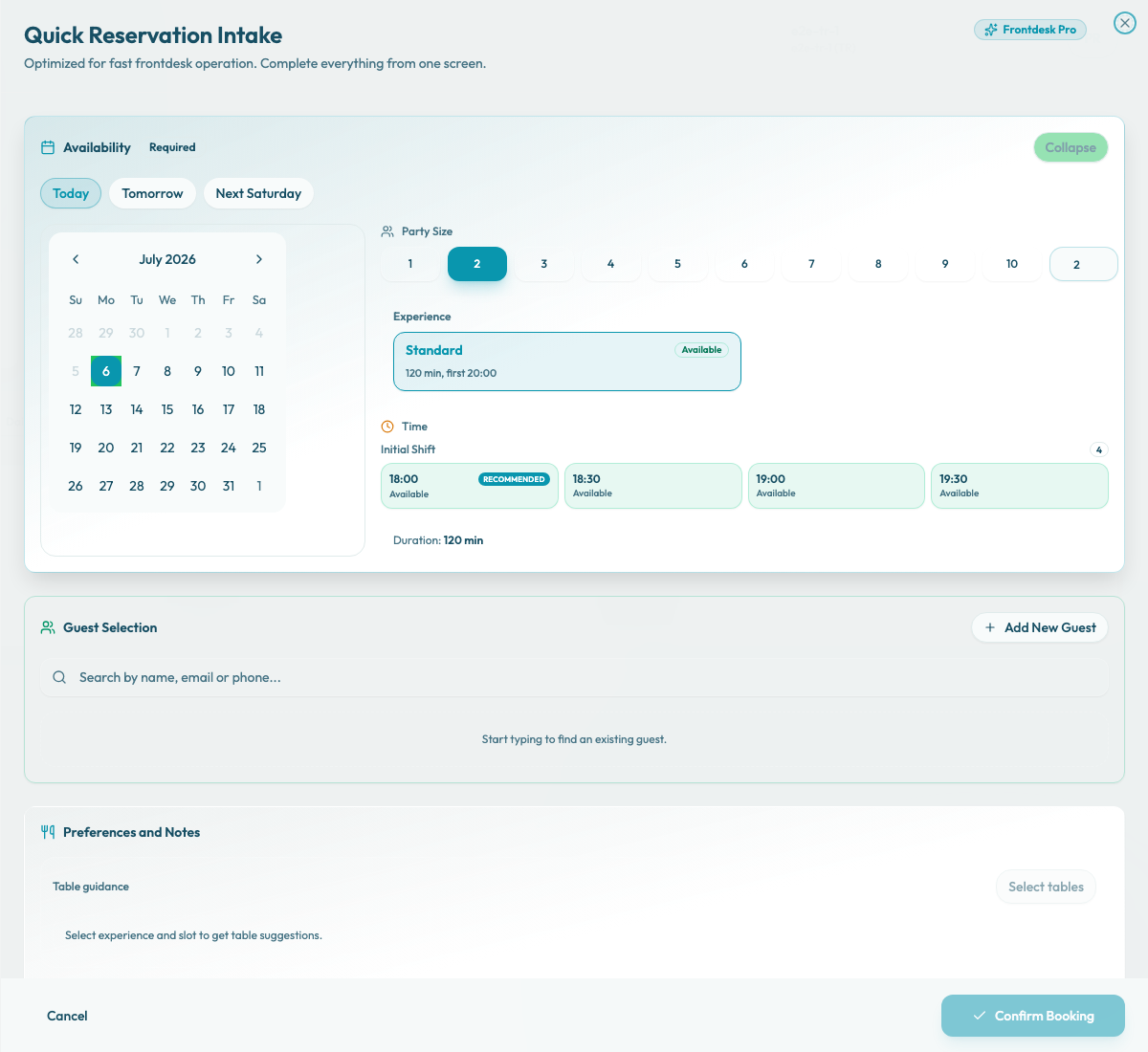
The wizard opens as Quick Reservation Intake. It is built for front-desk speed, but the team should still choose the correct date, party size, experience, time, guest, and table assignment before confirming.
Manual reservations are staff-created confirmed reservations. They are not pending guest requests, and they should not be used to skip the restaurant's availability and table-planning process.
Choose availability first
Open Bookings and confirm the selected restaurant. Click New Reservation to open the side panel.
Start in Availability. Use the quick date buttons, such as Today, Tomorrow, or Next Saturday, or pick a date from the calendar. Past dates are disabled.
Select the party size with the 1-10 buttons or enter a custom number in the 11+ field. Changing the date or party size refreshes the available experiences, times, and table suggestions.
Choose the Experience and then the Time. Experience cards show whether an experience is Available, Limited, or has No slots, plus the duration and first available slot when Reslify can find one. Time slots may also show guidance such as Recommended, Multi-table, Overbook only, Outside policy, or No capacity.
If the experience has no slots, keep the experience selected only if you are intentionally looking for another date or party size. Otherwise choose a different experience or time before moving on.
Select or create the guest
In Guest Selection, search by name, email, or phone to reuse an existing guest profile. Select the matching guest when it appears.
If the guest is new, use Add New Guest. First name and last name are required before the guest can be saved. Email and phone are optional, but phone numbers are validated against the restaurant's country settings when entered.
You can edit the selected guest before confirming, or use Select Different Guest to return to search. Existing guest profiles stay linked to the reservation; newly entered guest details are captured with the reservation.
Complete the operational details
Review Table guidance after selecting the experience and time. If Reslify suggests a table, the wizard can use that assignment automatically. If no suggestion appears, or the team wants a different seating plan, click Select tables.
In the table picker, choose one area and then one or more tables. The dialog separates Recommended, Available, and Unavailable tables. Unavailable or booked tables should only be chosen when the team is intentionally handling an approved exception.
Watch for warnings before confirming:
- Outside hours means the booking is outside configured booking hours.
- Table capacity warning means one or more selected tables may not fit the party size.
- Overbooking warning means one or more selected tables are already booked or excluded.
Add notes when the team needs context for service. Good notes are short, specific, and operational: seating preference, celebration, allergy reminder, accessibility need, or internal handling instruction.
Confirm carefully
Confirm Booking is available only after the required availability, guest, experience, and table details are complete. When you click it, Reslify rechecks the selected slot against current availability before creating the reservation.
If the latest check finds a warning, Reslify shows Override required. Use Back to review the reservation, or Confirm override only when the restaurant has intentionally approved the exception.
After confirmation, the reservation appears on Bookings as a confirmed reservation and occupies the selected time and table assignment. The panel intake flow does not create a pending request for staff review or send a guest confirmation email, so read the details back to the guest before confirming: date, time, party size, experience, guest, table, and notes.