Reservations & Availability
Create special day overrides
Create date-range special days that close availability or replace the weekly schedule with a dedicated special shift calendar.
What special days are for
Special days are date-range exceptions under Settings > Special Days. They override the normal weekly shift calendar for a specific date or date range.
Use them for holidays, closures, private events, special menus, extended service, reduced service, or any exception that should not become part of the weekly schedule. A special day can either close the selected date range or use a dedicated special shift calendar for those dates.
Create the override
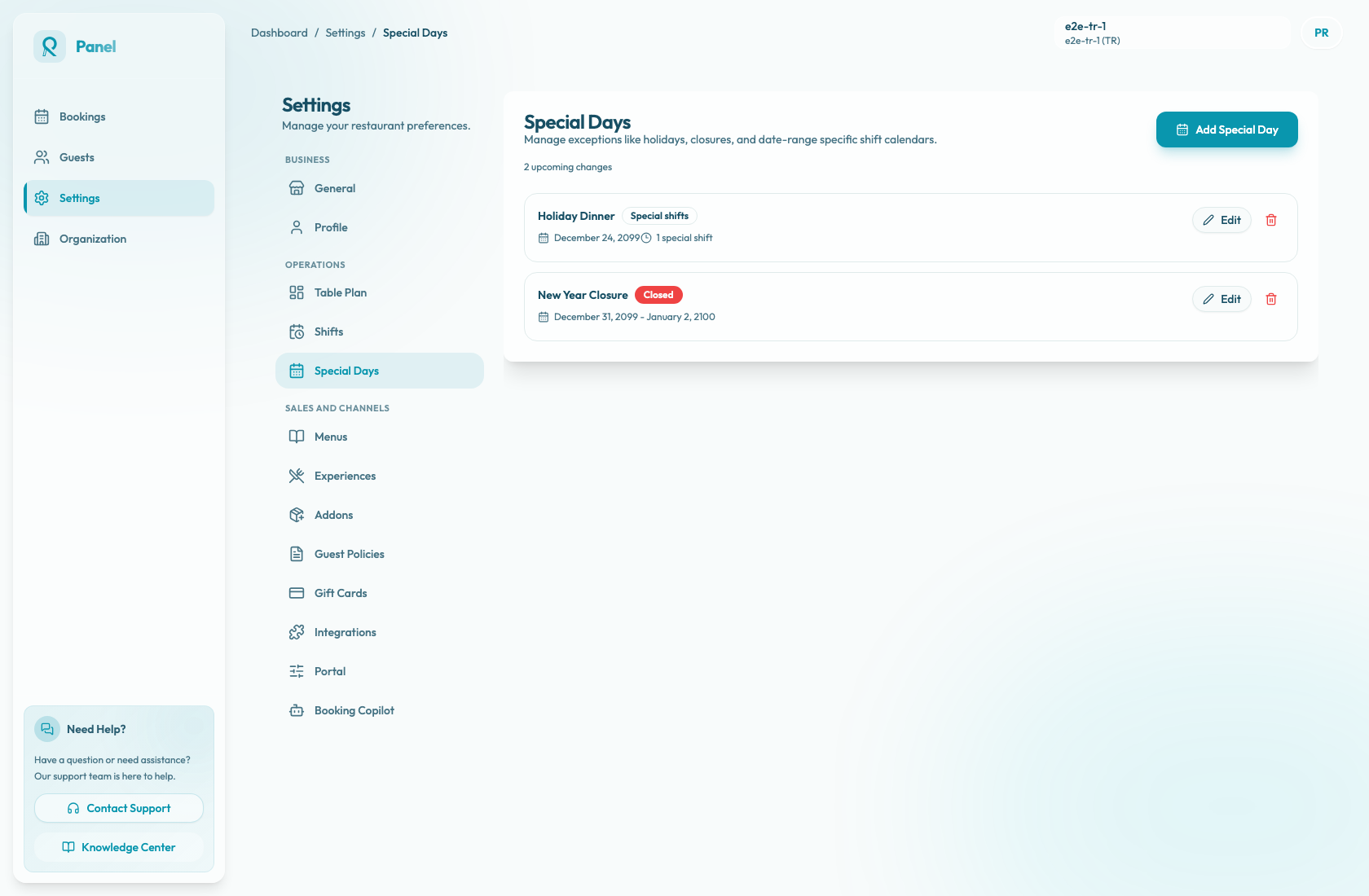
Open Settings, select Special Days, then choose Add Special Day. To change an existing exception, choose Edit on its card.
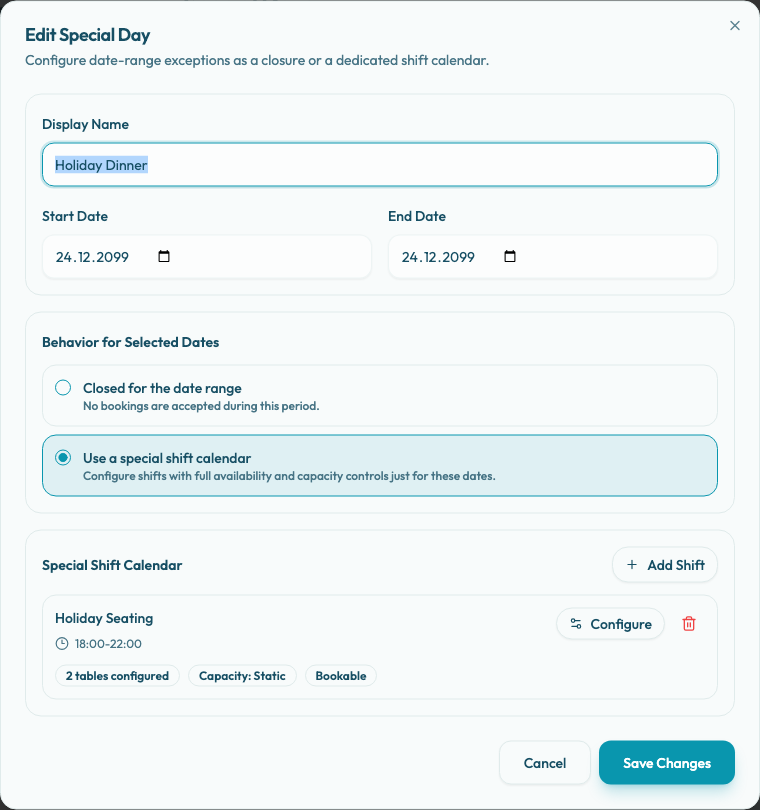
Enter the Display Name, Start Date, and End Date. For a one-day exception, use the same date for both fields. The end date must be on or after the start date.
Under Behavior for Selected Dates, choose the outcome for every date in the range:
- Closed for the date range blocks new bookings for the whole range.
- Use a special shift calendar keeps the range bookable, but uses special shifts instead of the normal weekly shifts.
Save the special day after the behavior matches the operational plan.
Configure special shifts
Select Use a special shift calendar when the restaurant should use different hours, table availability, or capacity on the selected dates.
The Special Shift Calendar section appears only in this mode. Choose Add Shift to create a shift and open Configure Special Shift. In that dialog, set Shift Name, Start Time, and End Time. The dialog also shows Bookability, Table Availability by Experience, and Capacity Control. Choose Done to return to the special day form.
Bookability is based on configured tables. A shift with no tables is not bookable yet; once at least one experience has tables, the shift can become Bookable. Configure table availability and capacity the same way you would for a weekly shift.
When using a special shift calendar, the form requires at least one shift. Each special shift must have a name, and End Time must be after Start Time.
Review saved cards and impact
After saving, the special day appears in the list. Cards show the display name, date or date range, a Closed or Special shifts badge, and edit or delete actions. Special-shift cards also show the number of configured special shifts.
The booking flow and staff reservation tools use the special day instead of weekly shifts when the selected date falls inside the special day range. A closed special day returns no shift options for that date range. A special-shift day returns only the special shifts that apply to those dates.
Review existing reservations for the affected dates before closing or replacing a live service day. The special day controls availability; the team still needs to decide what to do with guests who are already booked.