Reservations & Availability
Override reservation availability warnings
Understand when the manual reservation wizard warns about unavailable slots, outside hours, overbooking, or capacity, and how to confirm an override deliberately.
What an override means
An availability override lets the restaurant create a manual reservation even when Reslify detects a scheduling or table assignment warning. It is meant for manager-approved exceptions, not normal intake.
An override does not change the shift, table plan, capacity settings, or special-day configuration. It only creates this reservation despite the warning.
The wizard may warn you when the selected slot is unavailable, outside configured booking rules, has no remaining capacity, requires overbooking, or when the selected tables are booked, excluded, or not sized for the party.
Where warnings appear
In the time grid, Reslify ranks slots and adds guidance badges. Recommended is the normal first choice. Multi-table means the best fit may need more than one table. No capacity, Overbook only, Outside policy, or a generic Override badge mean the slot should be treated as an exception.
Selecting an override-ranked slot marks the booking for override review. If the slot is outside hours, unavailable, or cannot be checked, the wizard also shows an Availability warning below the time grid.
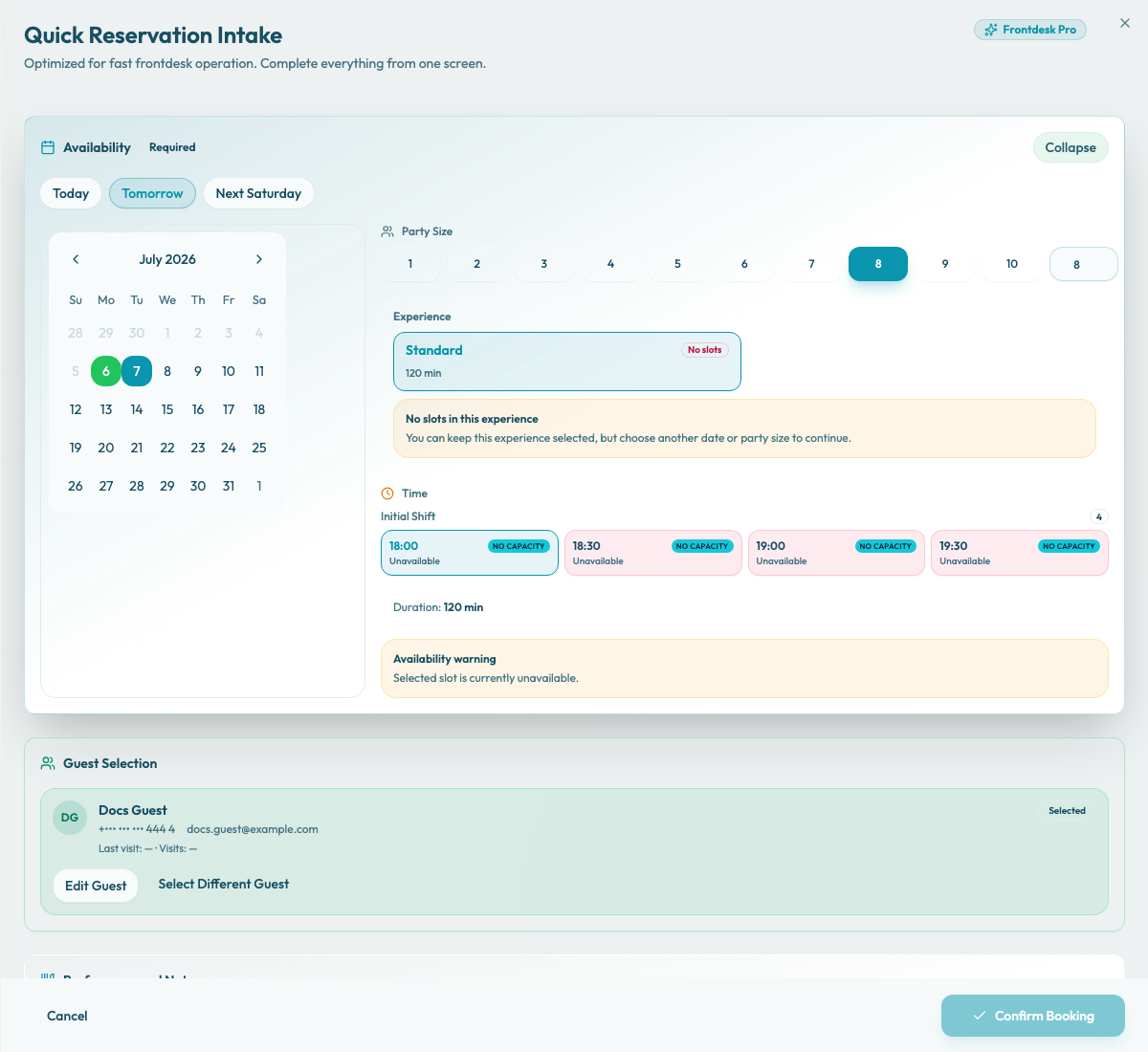
In Table guidance, Reslify shows the suggested table assignment when one exists. If you leave the suggestion unchanged, that area and table selection will be used for the reservation. Use Select tables or Change tables to open the table picker and inspect alternatives.
The table picker groups tables by area and section: Recommended, Available, and Unavailable. Pick one area, then choose one or more tables from that area. Booked or excluded tables are unavailable by default; they become selectable only after you have selected a slot that already requires an override.
Some table statuses need extra review:
- Overbookable means the table can accept overlapping parties, usually because overbooking is enabled for that table.
- Not fitting means the selected party may not fit the table capacity.
- Booked or excluded tables trigger an overbooking warning if you select them during an override flow.
Review the warning
Start by reading the warning type. A slot warning usually means the selected time is not a normal available option. A table warning usually means the selected table is booked, excluded, outside configured hours, or not sized for the party.
Check the date, time, party size, experience, duration, area, and selected tables before continuing. If any of those inputs are wrong, change the slot or tables instead of overriding.
Use the warning to choose the safer correction:
- For No capacity, choose another time, reduce the party size if it was entered incorrectly, or review shift and table capacity settings.
- For Overbook only, Overbookable, or Overbooking warning, confirm that the service team can manage the overlapping seating.
- For Table capacity warning, choose a larger table or a valid multi-table assignment when possible.
Confirm the override
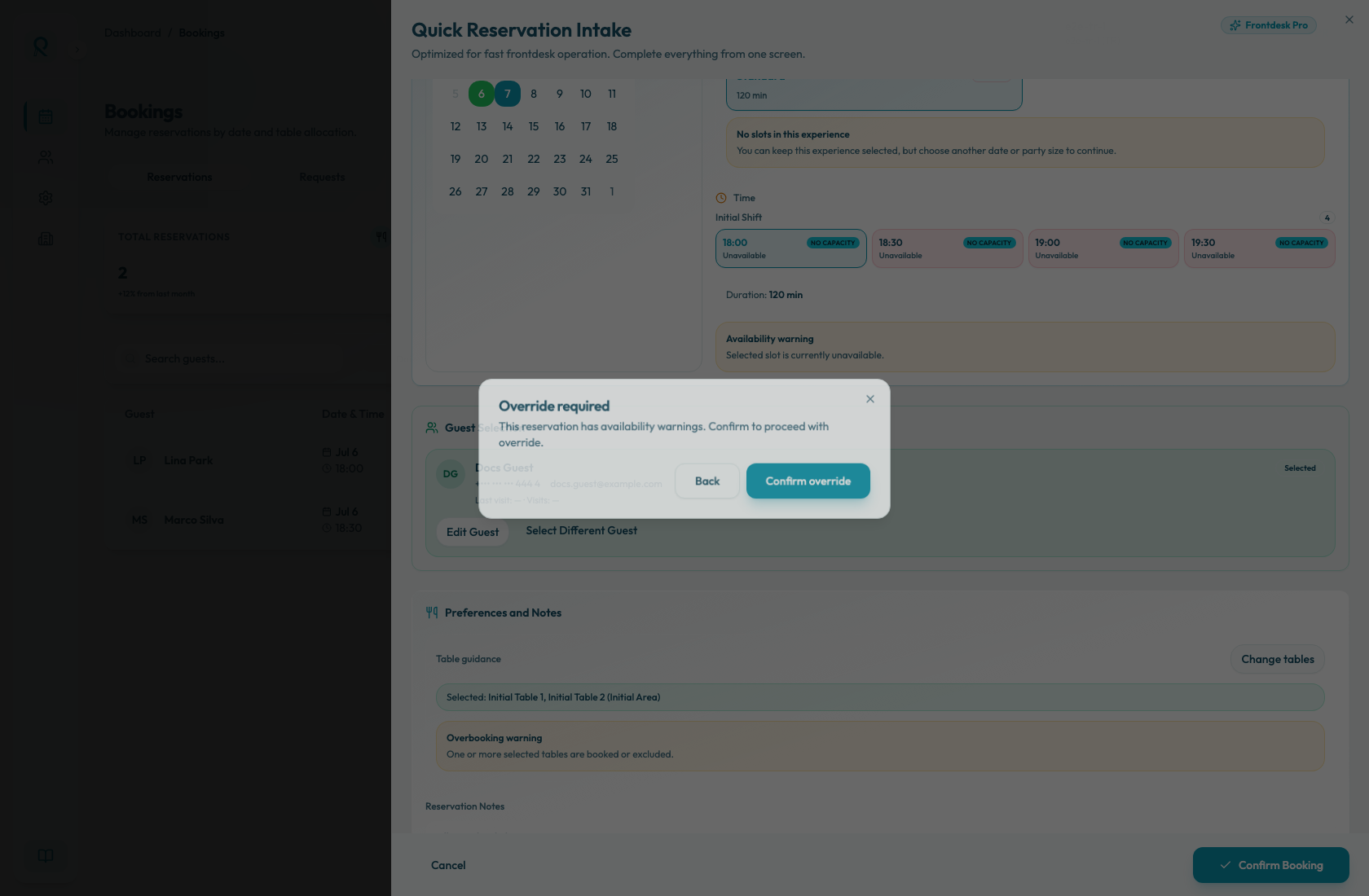
When you click Confirm Booking, Reslify checks the latest availability again. If the selected slot is now override-ranked, unavailable, outside hours, or was already selected as an override slot, Reslify asks for one more confirmation.
Use Back if the warning needs more review. Use Confirm override only when the restaurant has intentionally decided to create the reservation anyway.
After creating an override
Review the created reservation from the Bookings list. Confirm that the status, guest, experience, time, table assignment, and notes match the exception that was approved.
If the override was created to handle a special seating decision, add a clear internal note so the service team knows why the booking differs from normal availability.