Reservations & Availability
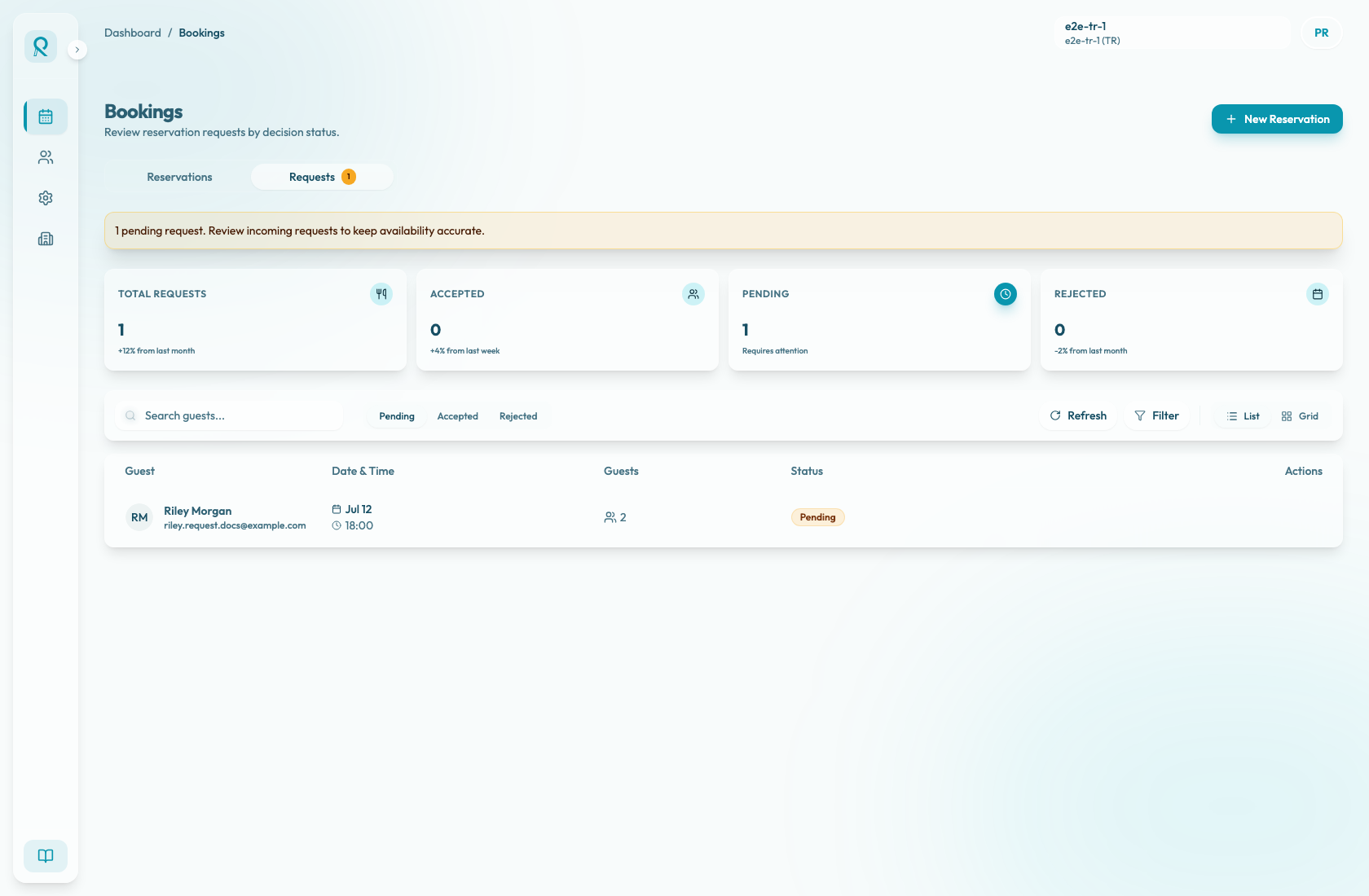
Refresh real-time reservations
Use the Bookings refresh control to confirm the latest reservation and request state when the team is coordinating live service.
Why refresh matters
Bookings can change while the team is using the panel. A guest may submit a request, another team member may update a reservation, or availability may change after a status decision.
Reslify listens for reservation and request changes while the dashboard is open. New reservations and new requests also trigger a notification, and the Bookings data is checked again when the browser window regains focus.
Use the Refresh control when you need a deliberate confirmation that the list, counts, and open sidebars reflect the latest server state before taking action.
When to refresh
Refresh before accepting or rejecting a reservation request if the request has been open for a while. This helps avoid acting on a stale view after another team member has already handled it.
Refresh after a guest calls, messages, or changes their request through another channel. The refreshed list gives the team the safest starting point before opening a row.
Refresh during service handoff. When one team member takes over from another, refreshing Bookings confirms the current queue before decisions continue.
Refresh when you return to a browser tab after working elsewhere. The panel also re-checks reservation data on focus, but the manual refresh gives the team a visible confirmation before service decisions.
What changes after refresh
The current tab, date, search, view, and request status filters remain in place. The visible rows and stats update to match the latest reservations or requests for that view.
The toolbar Refresh button reloads reservation data for the selected day, the currently selected request status list, and the pending request count shown in the Requests tab. Accepted and rejected request tabs show requests from the last seven days.
If a request disappears after refresh, it may have been accepted, rejected, cancelled, or moved out of the current status filter. Switch status tabs if you need to find it again.
Use refresh with request review
If the Reservation request sidebar is open, use its Refresh button to re-check the request queue while keeping attention on the selected request. If that request moved out of the active status filter, the sidebar may close because the request is no longer in the current list.
After you accept or reject a request, Reslify shows a success or error message. A successful action closes the sidebar and refreshes the pending queue so the handled request no longer appears there.
Refresh reservation details
If the Reservation details sidebar is open, use its Refresh button to reload the selected reservation details and update the surrounding Bookings list. This is helpful before changing a reservation status, reviewing payment or cancellation information, or checking whether another team member already updated the booking.
After a reservation status, cancellation fee, no-show settlement, or gift-card action succeeds, Reslify refreshes the sidebar and the list. If the action fails, the panel shows an error message and keeps the current details open so you can review and try again.
Understand live notifications
Realtime updates reduce the need to repeatedly refresh the page during service. When a new reservation or new request arrives, the panel shows a notification with the guest and cover count, then refreshes the relevant booking data.
Manual refresh is still the safest final check before decisions that affect guests, tables, or payments.