Reservations & Availability
Review reservation details
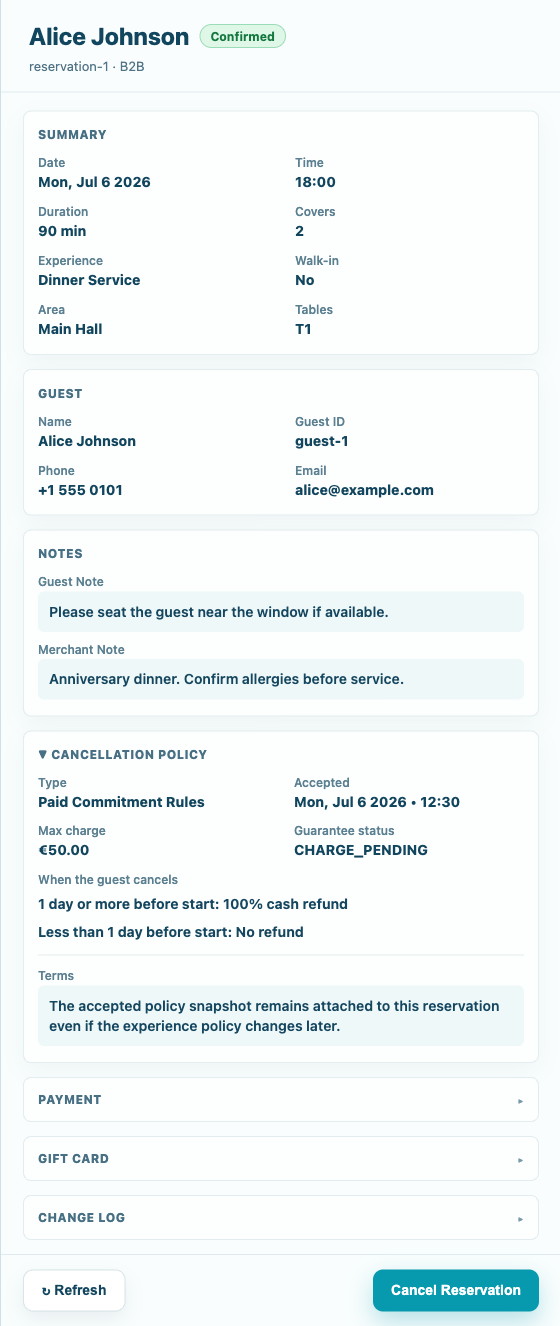
Open a reservation to review guest details, timing, table assignment, notes, cancellation policy, payment, gift card, guest policy, and change log context.
When to open details
Open reservation details whenever the row does not contain enough information to act confidently. The detail panel is the place to confirm guest information, status, assignment, timing, and notes before making a change.
This is the recommended step before cancelling, marking a guest status, changing a table, charging or refunding a cancellation fee, consuming gift-card value, applying a no-show settlement, or answering a guest-specific question.
What to review
Start with the title and status badge, then read the Summary section. It shows date, time, duration, covers, experience, walk-in state, area, tables, created time, and updated time. These fields answer most front-of-house questions.
Review the assigned table or table combination before service. If the assignment is missing or unexpected, check table availability and use the table assignment flow where appropriate.
Use the Guest section for the guest ID, phone, email, and guest profile note. Read Notes before confirming anything with the guest. Notes may contain seating requests, accessibility needs, celebration details, or operational instructions.
Policies and payments
Open Cancellation policy when money, credits, or cancellation terms matter. The panel can show the accepted policy type, acceptance time, deadline, charge window, maximum charge, guest-cancellation rules, team-cancellation outcome, no-show outcome, terms text, merchant note, guarantee status, charge attempts, refund attempts, and settlement history.
If accepted guest policies are attached, the same area shows the policy title, accepted time, locale, version, and rich text body. Use this when the guest asks what they agreed to during booking.
Open Payment to review deposit, prepayment, optional prepayment, currency, add-ons, provider, and PAYTR settlement details when available. Open Gift card to review attached gift-card code, status, applied amount, remaining balance, expiry, and the Consume attached value action when the card is still attached.
Use Change Log to see reservation updates in newest-first order, including who changed the field and the previous and new values.
Before taking action
Confirm the booking source, reservation ID, and current status in the panel header. Different sources and statuses may affect which actions are available and how the guest should be handled.
Use Refresh before acting if the panel has been open for a while or another team member may have changed the booking. Confirmed future reservations can show Cancel Reservation. Confirmed reservations that have already started can show Mark No-show. No-show reservations can show Restore Confirmed. Other statuses may show no available action.
If the detail panel was opened after using search, make sure the reservation is on the intended date. This avoids changing the wrong booking when a guest has multiple reservations.