Reservations & Availability
Set table availability inside a shift
Choose which tables each experience can use inside weekly or special-day shifts so only configured experiences generate reservation slots.
Why this setting matters
Table availability inside a shift connects each experience to the physical tables that can serve it. Configure it inside weekly shifts and inside special-day shifts whenever those shifts should accept reservations.
Without this connection, an experience can exist in the restaurant setup but still produce no guest-facing slots during that shift.
Use this setting to decide whether an experience can use the whole restaurant, only a specific area, or a limited set of tables. Table availability defines which inventory the experience can use; capacity control can then limit how much of that inventory is opened.
Find the experience rows
For normal recurring availability, open Settings, select Shifts, then add or edit a weekly shift.
For a date-specific override, open Settings, select Special Days, choose Use a special shift calendar, then add or configure a special-day shift.
In the shift dialog, find Table Availability by Experience. Each experience row shows:
- the number of selected tables
- Max capacity, calculated by adding the Max capacity of the selected tables
- Not bookable when that experience has zero selected tables
- Manage Tables to edit the table selection
The shift-level Bookable state appears when at least one experience has at least one table. That does not make every experience bookable: an experience with zero selected tables still does not generate slots for that shift.
Select tables for one experience
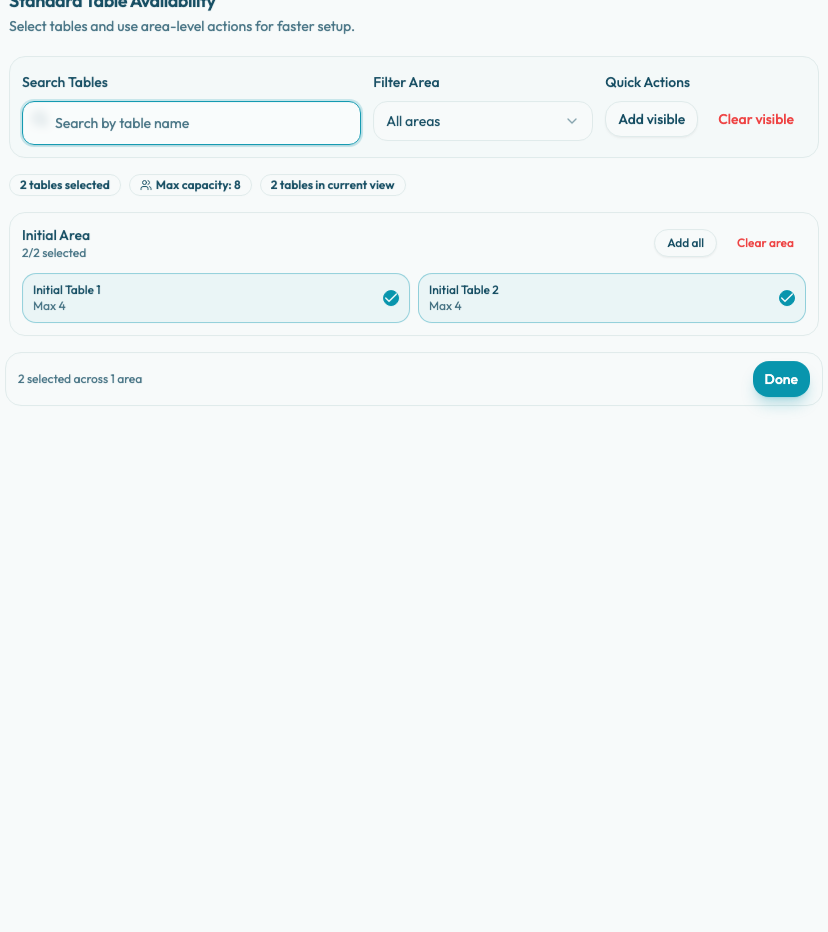
Choose Manage Tables on the experience row you want to configure. The dialog is scoped to that experience only.
Use Search Tables to search by table name, or Filter Area to show one area at a time. Add visible selects the tables in the current filtered view, and Clear visible removes selections from that same view.
Each area group shows how many of its visible tables are selected. Use Add all to select the whole area, Clear area to remove the whole area, or the individual table checkboxes for precise control.
Review the selected summary and Max capacity before choosing Done. Tables with overbooking enabled show an Overbooking label in the dialog, so the team can spot shared-table inventory before assigning it.
After closing the table dialog, save the weekly shift or save the special-day override so the availability change is applied.
Common setup patterns
Use all tables when the experience is the restaurant's normal booking flow.
Use a subset of tables when the experience is tied to a room, counter, terrace, tasting menu, or other limited service area.
If the experience has party-size rules, make sure the selected tables and combinations can support those party sizes.