Reservations & Availability
Update reservation status
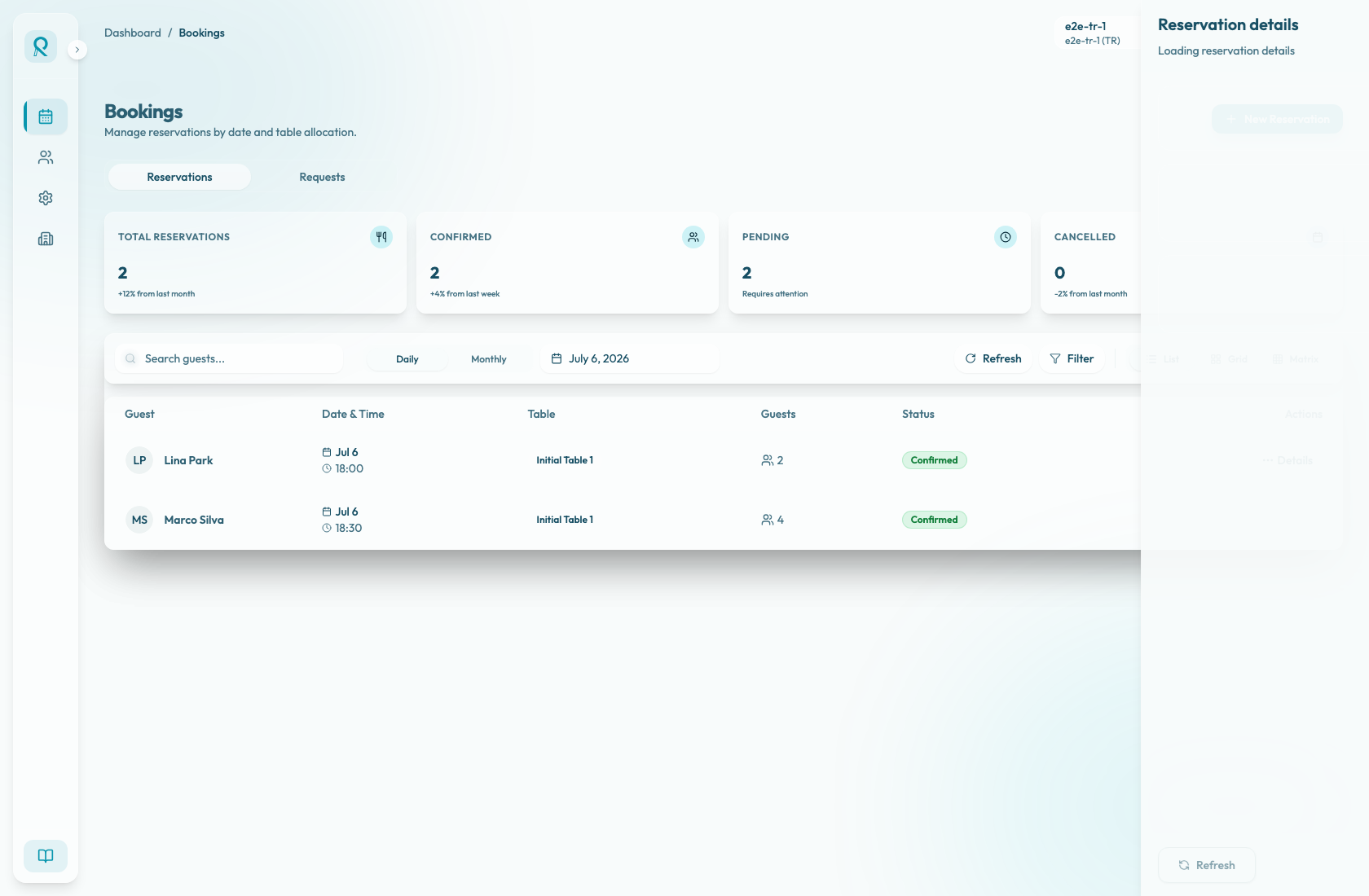
Understand where reservation status actions appear and how to use them after reviewing the booking details.
When to update status
Update a reservation status only after opening the reservation and confirming that it is the correct booking. Status changes can affect operations, availability, reporting, and the guest record.
The available actions depend on the reservation state, timing, and booking status configuration. A future confirmed reservation can be cancelled, a confirmed reservation that has already started can be marked no-show, and a no-show reservation can be restored to confirmed. Cancelled reservations do not expose a restore action in the reservation detail panel.
Review first
Before changing status, check the guest name, date, time, party size, table, guest note, and merchant note. If the guest contacted the restaurant, compare their request with the reservation shown in the panel.
Also review Cancellation policy, Payment, and Gift card when they are present. Status changes and payment or settlement actions are related, but they are not the same control.
If a booking came from an external channel, consider whether the guest also needs communication outside the panel. The status change should match the restaurant's guest communication process.
Use the status action
Use the footer action shown in the detail panel after the restaurant has decided what should happen.
- Cancel Reservation appears for future confirmed reservations. Use it when the restaurant is cancelling the booking. The reservation becomes cancelled and its held availability is released.
- Mark No-show appears for confirmed reservations after the start time. Use it only after the team has followed the restaurant's no-show process. The reservation becomes no-show and its held availability is released.
- Restore Confirmed appears for no-show reservations. Use it when a reservation was marked no-show by mistake. The reservation returns to confirmed and its availability hold is restored.
- No actions available means the current status, timing, or configuration does not allow a manual status change from this panel.
After a successful update, the panel shows Reservation updated and refreshes the booking data. If the update fails, the panel shows Failed to update reservation and the existing status remains unchanged.
Handle policy controls separately
A status change may unlock policy controls in the reservation detail panel, but staff still need to review and run those controls separately when required.
For card guarantees, marking a reservation no-show can move an eligible guarantee to a charge-pending state. In Cancellation policy, the panel may then show Charge cancellation fee with an amount field and a reason such as No-show or Late cancellation. Check the accepted policy, maximum charge, charge window, and no-show grace period before charging. If a charge succeeds, Refund fee can appear for refundable remaining amounts.
For paid commitments, marking a reservation no-show does not automatically apply the no-show settlement. When the accepted cancellation policy uses paid commitment rules, the panel can show Apply no-show settlement after the reservation is marked no-show. Use it only after confirming the no-show outcome in the accepted terms. Settlement history records the result. Merchant cancellations with paid commitments are settled during the cancellation status update, so review the settlement history after cancellation.