Reservations & Availability
Use the table matrix view
Use the table matrix view to understand reservations by time, area, and table assignment during service.
When to use the matrix view
Use the table matrix view when the question is operational: which table is used, when it is used, and what else is happening around it.
This view is especially helpful for hosts, managers, and reservation teams who need to understand capacity pressure, spot conflicting assignments, and follow the rhythm of a service before or during a shift.
Read the matrix
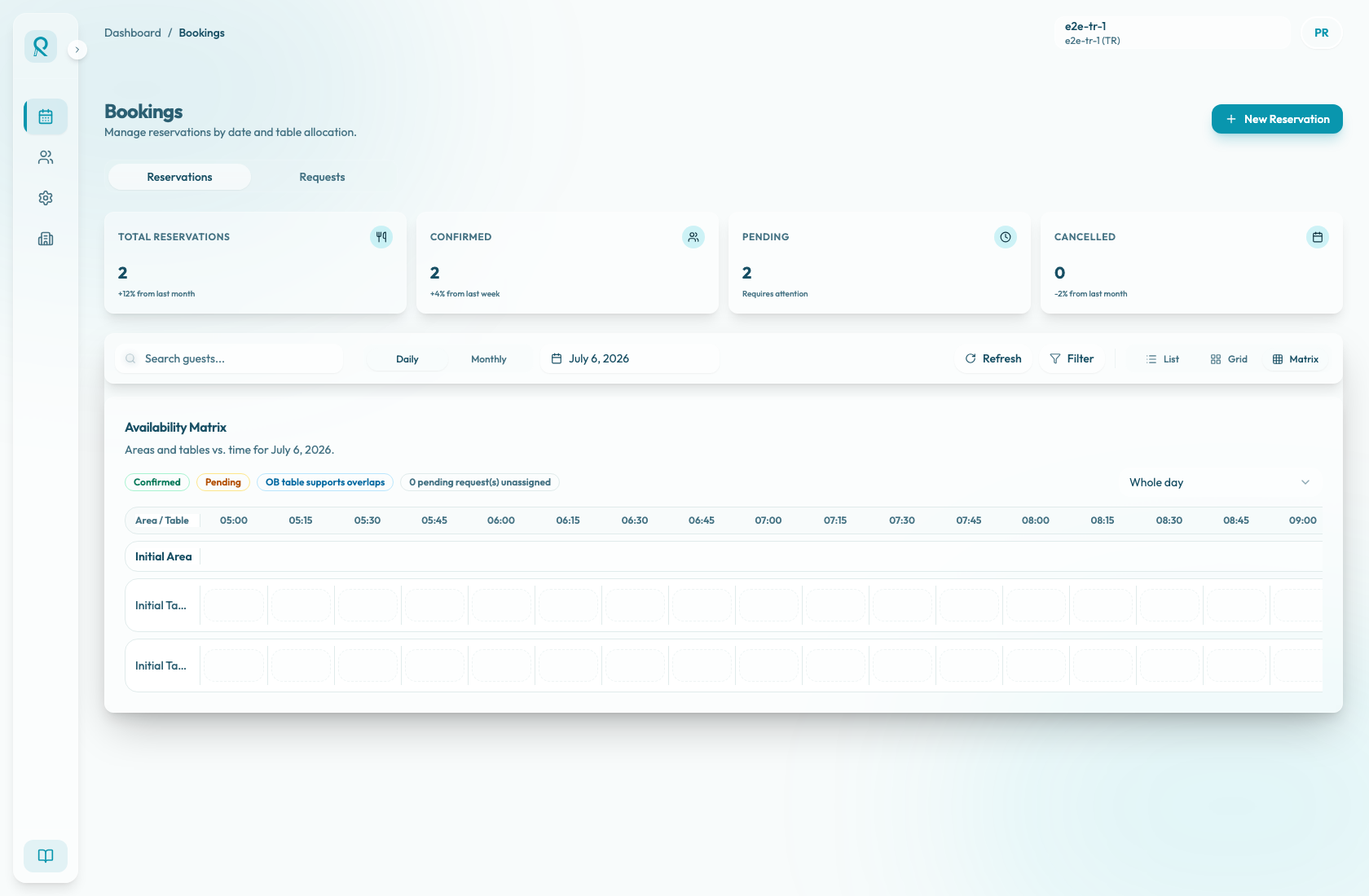
The left column is Area / Table. Each configured area appears as a section, and the tables inside that area appear as rows underneath it.
The time columns use 15-minute slots. Whole day shows the full business-day timeline. Shift options show the selected shift window, including nearby context, and only reservations that overlap that window remain visible.
Reservation bars show the guest name, covers, and duration. Confirmed reservations use the confirmed styling; pending reservations use the pending styling. Cancelled reservations are not shown in the matrix.
Click a reservation bar to open the reservation details sidebar. If a reservation appears on the wrong table, review its table assignment from the reservation details or the relevant reservation workflow.
Requests, overbooking, and capacity
Reservation requests do not appear as table bars in the matrix. Use the unassigned request badge as a quick signal, then open the Requests tab to review and accept or reject individual requests.
Tables with overbooking enabled show an OB badge, matching the legend OB table supports overlaps. On those tables, overlapping reservations can stack into separate lanes so the overlap is visible.
The matrix itself does not show capacity warning messages. Capacity and overbooking warnings appear in reservation creation or table selection workflows. Use the matrix as the operational view, then confirm capacity warnings in the reservation workflow before overriding availability.
Date, refresh, and search
Use the date picker to move the matrix to another service date. For today, the matrix opens on the active shift when one is available; otherwise it opens on Whole day. Choosing another date resets the timeline to Whole day.
Use Refresh to reload reservations and request counts after changes from the team, Google, or another device.
Search still applies in the matrix. Matching reservations are highlighted and non-matching reservations are faded, which helps you find a guest without losing the surrounding table context.
Daily use cases
Use the matrix before service to check whether reservations are distributed sensibly across the room.
Use it during service when a guest requests a different table or when the team needs to understand whether an in-person party can be accommodated without disrupting existing bookings.