Reserve with Google & Integrations
Deactivate Reserve with Google
Request deactivation when a restaurant should stop accepting reservation traffic from Google channels.
4 min/
When to request deactivation
Request deactivation when the restaurant should stop using Google as a booking channel. This is appropriate when the restaurant is changing providers, pausing a location, or no longer wants Google Search and Maps to expose reservation entry points.
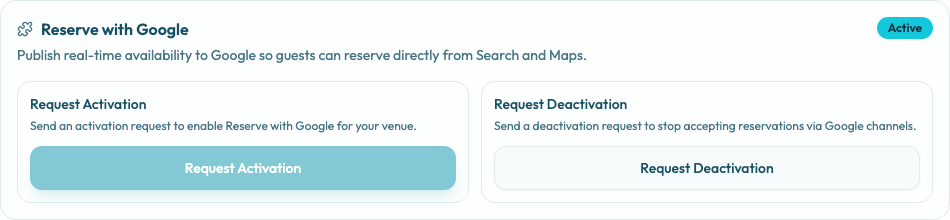
Request deactivation
- Open Settings / Integrations.
- Find Reserve with Google.
- Confirm the integration is active.
- Select Request Deactivation.
- Review existing Google reservations and pending operational follow-up.
- Monitor the channel until Google no longer exposes bookable times.
Before deactivating
Check whether the issue can be solved by changing availability, closing special days, or archiving an experience. Deactivation should be used when the Google channel itself should stop, not for routine schedule changes.
Before stopping the channel, review existing Google bookings in Reservations so the team can honor, move, or cancel them intentionally.