Reserve with Google & Integrations
Request Reserve with Google activation
Record Reserve with Google activation intent in the panel and prepare the restaurant for Reslify and Google enablement checks.
Request activation
Use activation when the restaurant is ready to start Reserve with Google enablement. The panel records the activation intent for the active restaurant; production booking traffic from Google Search or Google Maps still depends on Reslify and Google readiness, support or operations follow-up, and Google's processing.
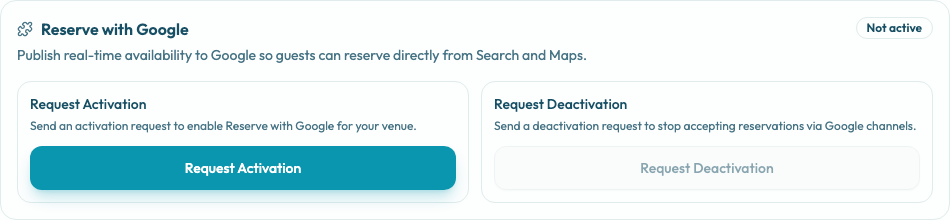
Steps
- Confirm the active restaurant.
- Open Settings / Integrations.
- Find Reserve with Google.
- Confirm the card shows Not active.
- Select Request Activation.
- Confirm the local card state changes to Active, Request Activation is disabled, and Request Deactivation is enabled.
What to verify before requesting
Make sure the restaurant is comfortable with Google as a booking channel and that the active restaurant is the one you want Reslify operations to review. Confirm:
- restaurant profile identity, name, address, phone, and website
- Google Business Profile alignment with the Reslify profile
- availability shifts, special days, tables, and bookable experiences
- payment, deposit, card guarantee, and cancellation rules
- guest policies guests must accept before booking
- a final guest-flow test on the public booking page
If the restaurant is still building availability or policy setup, finish configuration before requesting activation.