Reserve with Google & Integrations
Prepare the Google Business Profile
Check the restaurant's Google Business Profile separately and align Reslify profile details before Reserve with Google activation.
Why profile alignment matters
Reserve with Google depends on clear restaurant identity. Reslify builds the Google merchant candidate from the restaurant profile identity fields, including the venue name, website URL, telephone, geo/address, and terms. Those details should describe the same physical restaurant that guests see in Google Search and Maps.
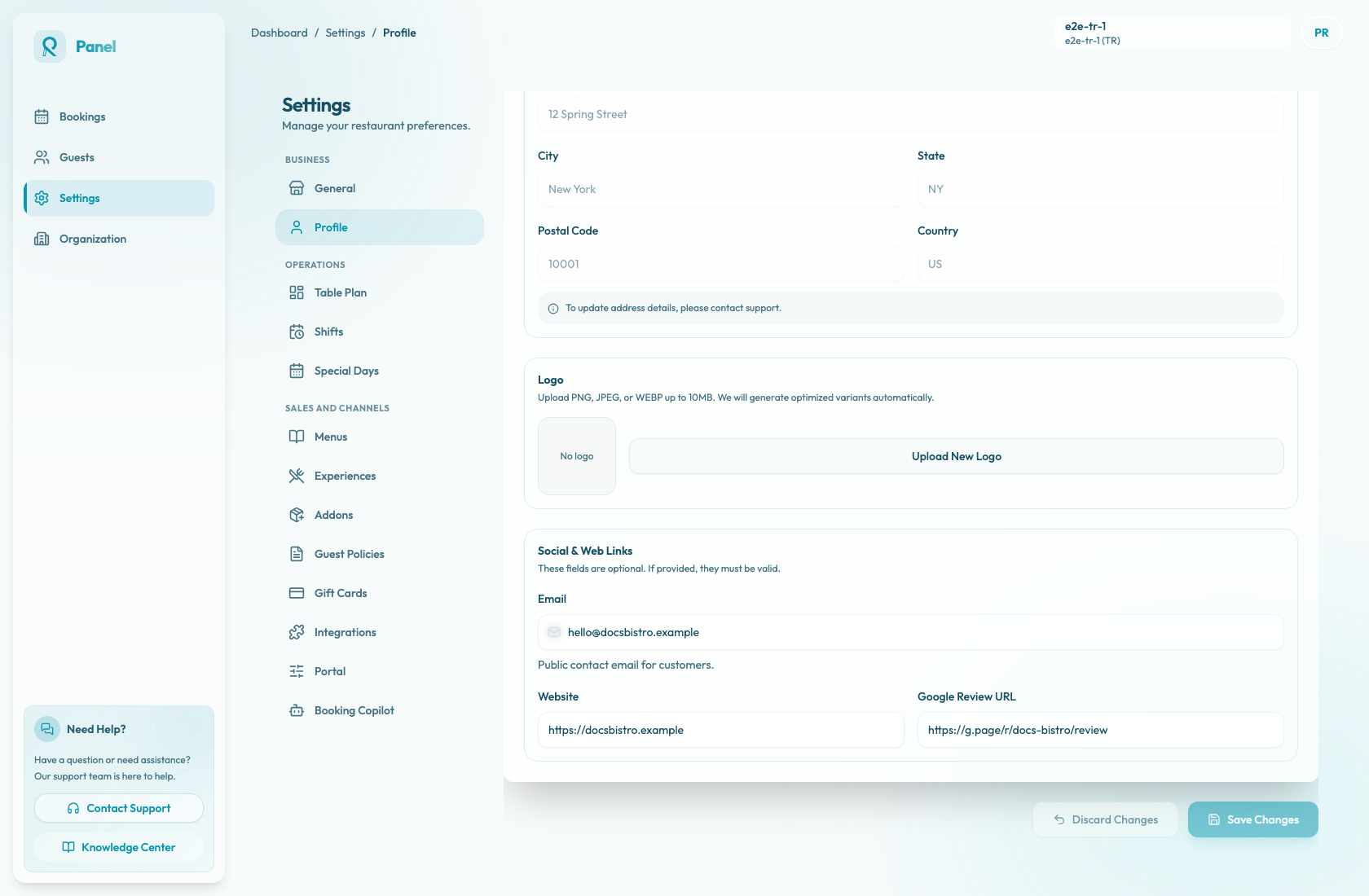
Prepare the Reslify profile
- Confirm the active restaurant.
- Open Settings / Profile.
- Review the restaurant name and address details. Use the public venue name and the same address format used on Google whenever possible.
- Confirm the telephone number is reachable and belongs to the restaurant.
- Enter the restaurant website URL.
- Review the reservation terms shown to guests.
- Upload a clear restaurant logo.
- Enter the public contact email.
- Add Google Review URL if available. This is a profile and social link field for the restaurant's public Google presence; it is not the Reserve with Google activation switch.
- Save changes.
Check Google separately
Reslify does not manage or verify the restaurant's Google Business Profile. Check Google separately before requesting activation. Confirm that the business profile is verified, the public address and phone number are correct, the website points to the same venue, the business category is appropriate, and the restaurant is not duplicated under another listing.