Start Here
Find support and Knowledge Center links
Learn where merchants can find support access and open the Reslify Knowledge Center from inside the panel.
Where support lives
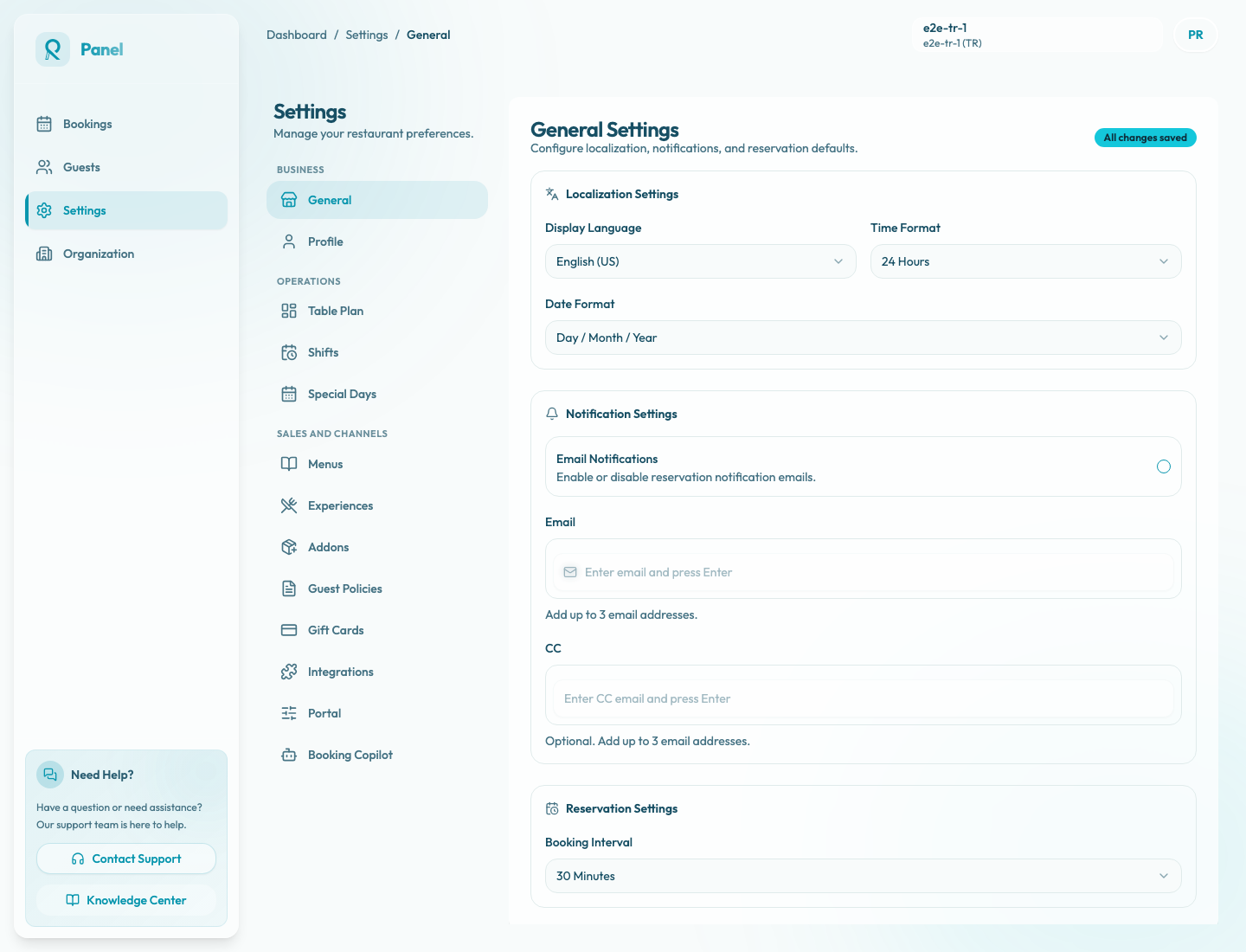
The panel includes support access in the left sidebar. When the sidebar is expanded, the support card appears near the bottom of the screen with two buttons: Contact Support and Knowledge Center.
Use Contact Support when you need help from the Reslify team. Use Knowledge Center when you want a self-serve guide for a panel feature, workflow, or setting.
When to use the Knowledge Center
Open the Knowledge Center when you need instructions for a product workflow. It is best for questions like:
- where a setting lives
- how a booking or availability rule works
- how guest-facing pages are connected to panel settings
- what to check before enabling a feature
- how to troubleshoot a common issue
The Knowledge Center link opens in a new browser tab, so your current panel page stays available.
When to contact support
Use Contact Support when you need account-specific help, when a verified business detail needs to be changed, or when the product does not behave as expected after you have checked the relevant settings.
Contact support is also the right path for questions involving billing access, identity-sensitive restaurant profile fields, or anything that may require Reslify to inspect the account.
Collapsed sidebar
On some pages or screen sizes, the sidebar may collapse to icons. In that state, the Knowledge Center remains available as an icon button near the bottom of the sidebar. Hovering the icon shows the Knowledge Center label.
What to include when asking for help
When contacting support, include the restaurant name, the panel page you were using, what you expected to happen, and what happened instead. If the issue is guest-facing, include the booking page or widget URL and the date, time, experience, and party size you tested.