Start Here
Navigate the panel
Learn how to move around the Reslify panel, switch between core sections, and confirm the active restaurant before making changes.
Navigation basics
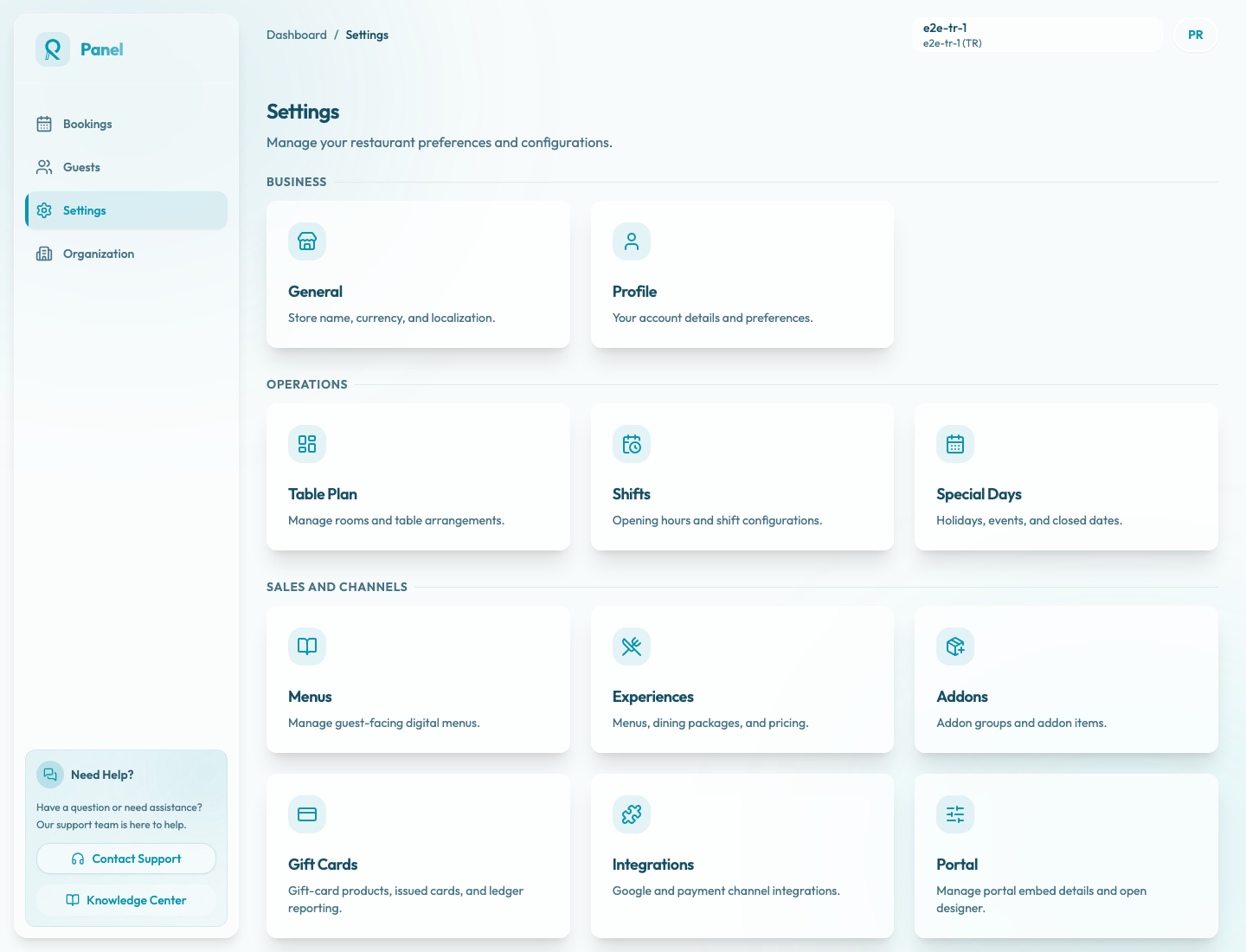
The panel is organized around a left sidebar. On desktop, the sidebar shows the main areas of the product: Bookings, Guests, Settings, and Organization. The desktop sidebar can expand or collapse to icons; on mobile, open the navigation from the Menu button. The structure stays the same.
Use the sidebar whenever you need to move between operational work and configuration work. The active section is highlighted, and the breadcrumb at the top of the page shows where you are inside the panel.
Core sections
Go to Bookings when you are managing the service day. This is where you review reservations, requests, date filters, search, and the New Reservation flow.
Go to Guests when you need to find a guest profile, verify guest contact information, or review guest records before creating or updating a reservation.
Go to Settings when you are changing how the restaurant operates online or in the panel. Settings contains the largest number of feature areas: General, Profile, Table Plan, Shifts, Special Days, Menus, Experiences, Addons, Gift Cards, Integrations, Portal, and Booking Copilot.
Go to Organization when the work is broader than one restaurant, such as organization-level access or restaurant management.
Breadcrumbs
The breadcrumb appears near the top of the page. It is useful when you are deep inside settings, because it shows both the parent section and the current page. For example, Dashboard / Settings / General means you are editing general restaurant preferences inside Settings.
Use the breadcrumb as a quick orientation check before saving changes. If the breadcrumb or active sidebar item does not match the setting you intended to edit, pause and navigate to the correct page first.
Active restaurant
The active restaurant appears in the top bar. When your organization has multiple restaurants, this area becomes the Switch Restaurant menu. The selected restaurant determines which bookings and restaurant settings you are viewing.
Always confirm the active restaurant before editing:
- table plan
- shifts
- special days
- experiences
- menus
- portal access
- integrations
- Booking Copilot context
Support shortcuts
The bottom of the sidebar includes support access. In the expanded sidebar, the support card shows Contact Support and a Knowledge Center link. When the sidebar is collapsed, the Knowledge Center remains available as an icon button.