Start Here
Understand the settings structure
Learn how Reslify Settings is grouped and where to find each restaurant configuration area.
Why Settings matters
Settings is where your restaurant configuration is managed. If the booking page, widget, Google availability, AI Concierge, menus, or payment rules behave unexpectedly, the answer is usually in Settings.
The Settings home page groups configuration into merchant-friendly sections instead of one long form. Use it as the map for restaurant setup.
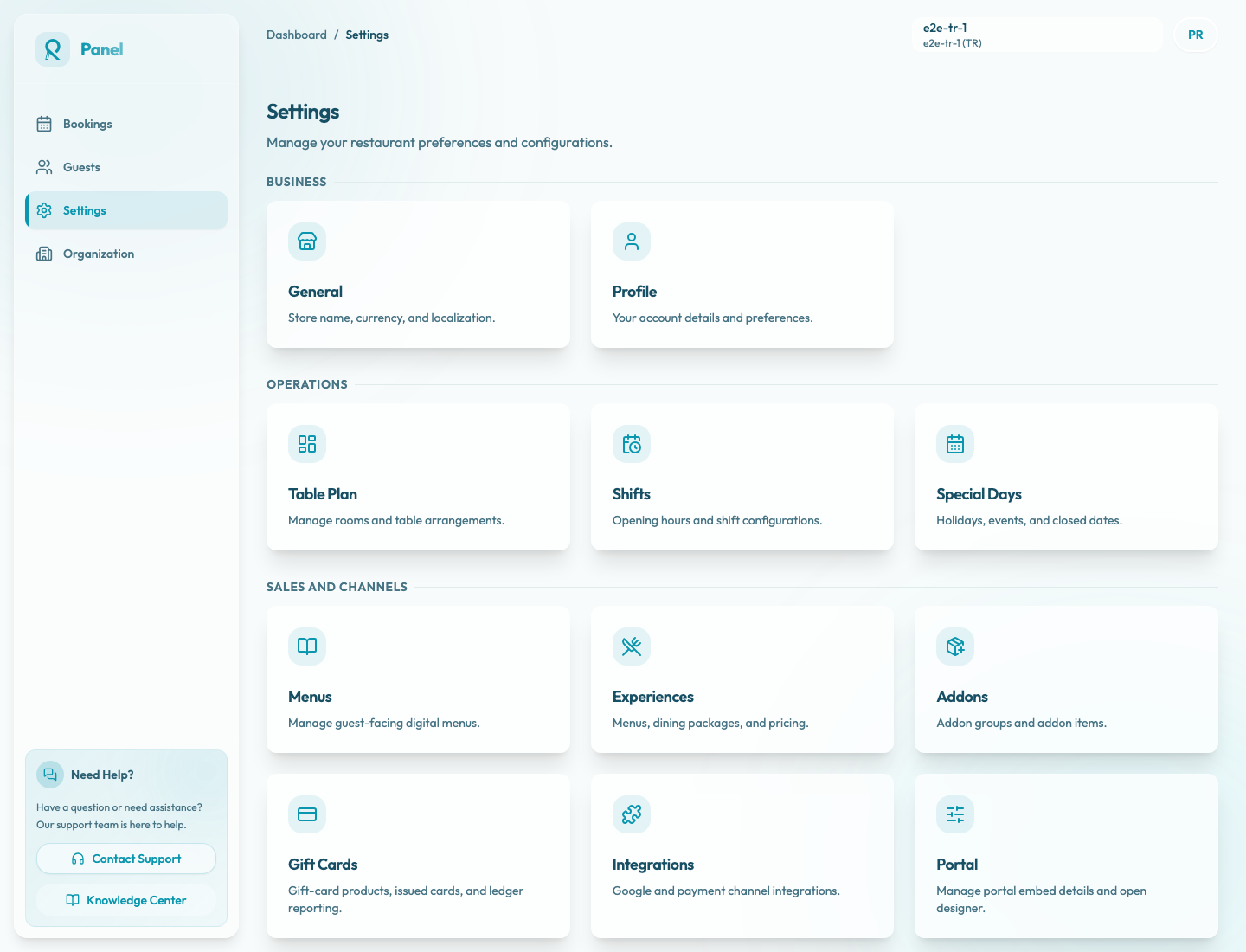
The home cards are the fastest starting point. After you open any settings page, the settings sidebar and mobile section selector show the full settings navigation, including entries such as Guest Policies that are managed from inside the settings area.
Business settings
The Business group contains settings that describe the restaurant itself or how the panel should behave for your team.
Use General for localization, notification emails, and reservation defaults such as booking interval. This is one of the first pages to check when dates, times, or notification delivery look wrong.
Use Profile for restaurant identity and profile details. Some profile fields may be read-only and require support if they affect verified business identity.
Operations settings
The Operations group controls the physical and time-based rules that create availability.
Use Table Plan to define areas, tables, table capacities, overbooking behavior, and table combinations. If a party size cannot be seated or tables do not appear as expected, start here.
Use Shifts to define weekly opening patterns and which tables or areas are available during each service window. Shifts are the backbone of normal recurring availability.
Use Special Days for exceptions such as holidays, events, closures, or one-off service changes. Special days override the normal weekly rhythm for specific dates or date ranges.
Sales and channels
The Sales and Channels group controls what guests can book or buy, and how those options are presented online.
Use Menus for guest-facing digital menus and menu imports.
Use Experiences for bookable offerings such as standard dining, tasting menus, events, prepaid experiences, or request-only services. Experience rules decide party sizes, durations, payment requirements, add-ons, policies, and booking mode.
Use Addons for optional items guests can add during booking, such as upgrades, celebration items, or packages.
Use Guest Policies from the settings sidebar or mobile section selector for the rules guests approve in the portal, such as cancellation, no-show, deposit, or house policies.
Use Gift Cards to manage gift-card products, issued cards, and ledger reporting.
Use Integrations for external services such as payment providers and Reserve with Google.
Use Portal for the standalone booking page, embed settings, portal access mode, and the portal designer launch.
Use Booking Copilot to configure the AI Concierge and the public restaurant facts it can use when answering guests.
How settings combine
Most guest-facing behavior is created by several settings working together. For example, whether a guest can book a table depends on table plan, shifts, special days, experience rules, guest policies, and sometimes payment configuration.
When troubleshooting, do not check only the page where the symptom appears. Follow the dependency chain:
- Confirm the active restaurant.
- Check the relevant experience.
- Check shifts and special days.
- Check table plan capacity.
- Check payment, policy, add-on, portal, or integration settings if the issue appears online.