Start Here
Reslify panel overview
Learn how the Reslify panel is organized and where merchants manage bookings, guests, settings, organization access, and support.
What the panel is for
The Reslify panel is the daily workspace for your restaurant team. Use it to review reservations, create bookings for guests, manage guest records, adjust restaurant settings, configure sales channels, and control team or organization access.
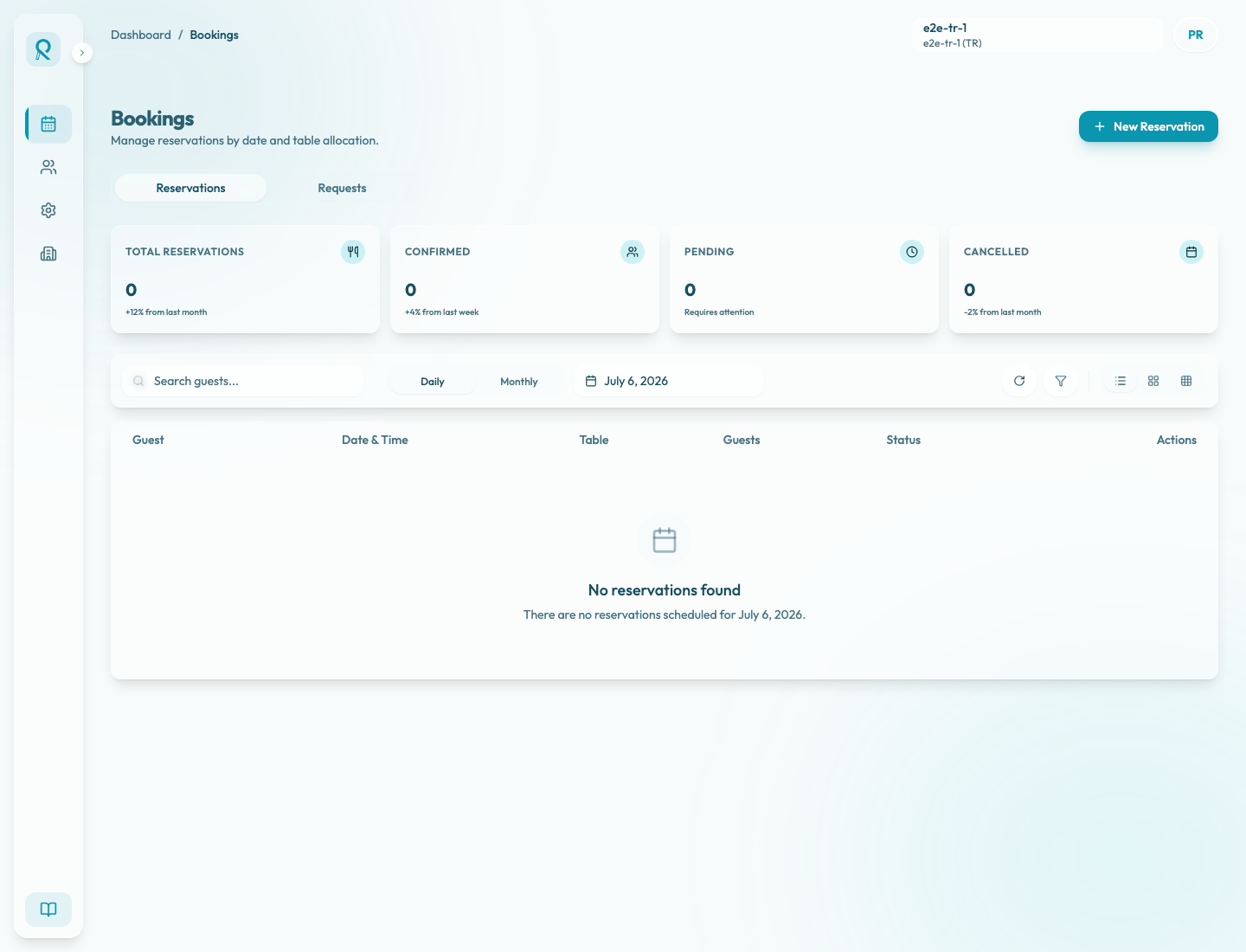
Most work starts from the left navigation. The main sections are Bookings, Guests, Settings, and Organization. Your active restaurant appears in the top bar, so always check that the correct restaurant is selected before making operational changes.
Main areas
Bookings is where front-of-house work happens. From here you can switch between reservation and request tabs, search guests, change dates, refresh live data, move between list, grid, and matrix views, and create a new reservation.
Guests is where guest profiles live. Use it to search guest records, review contact details, and keep guest information clean before or after reservations are created.
Settings is where the restaurant configuration lives. This includes localization, notification emails, table plan, shifts, special days, menus, experiences, add-ons, guest policies, gift cards, integrations, portal settings, and Booking Copilot.
Organization is for account-level structure, such as restaurants connected to the organization and team access. Depending on your role, some organization or billing actions may be restricted.
Support and Knowledge Center are available from the bottom of the sidebar. Use Knowledge Center to open merchant documentation. When the sidebar is expanded, use Contact Support when you need help from the Reslify team.
Top bar and active restaurant
The top bar shows the active restaurant and organization context. If your organization has multiple restaurants, use this area to confirm which restaurant you are editing. Settings changes apply to the selected restaurant, so this is especially important before editing shifts, table plans, menus, experiences, or portal access.
Daily workflow
For a normal service day, start in Bookings. Confirm the date, review totals, check pending requests, and use search when a guest contacts the restaurant. If you need to create a reservation by phone or walk-in, use New Reservation.
If availability looks wrong, move to Settings and check the pieces that create availability: table plan, shifts, special days, and experience reservation rules. For guest-facing issues, also check Portal and Integrations.
When to use each section
Use Bookings when you need to manage today, review requests, create reservations, or inspect booking status.
Use Guests when you need to find or clean up guest details.
Use Settings when you need to change how the restaurant can be booked or how guest-facing pages behave.
Use Organization when you need to manage restaurants, team members, or higher-level account access.
Use Knowledge Center or Contact Support when you need documentation or help from Reslify.