Troubleshooting
Availability is not showing
Diagnose why available times are missing from the booking page, widget, manual booking flow, or Google channel.
Reproduce the exact search
Start by matching the guest's search as closely as possible. A slot can disappear for one party size, date, location, or experience while nearby searches still work.
Check these places in order before changing settings:
- Open the public booking page or embedded widget and select the same party size, location or area, date, and experience the guest used.
- Confirm whether the guest sees No available slots found., a date-specific no-slots message, or a page access problem.
- Open Bookings in the panel for the same service date and check whether existing reservations, requests, or temporary holds may already consume the relevant tables.
- Use New Reservation only as an internal comparison. If the manual wizard also shows No slots for the same experience and party size, the cause is probably in availability configuration rather than the public page.
Separate access from availability
If the booking page or widget does not open at all, troubleshoot access first. In Settings / Website, check Online booking access:
- Public lets guests open the standalone page and embeds directly.
- Restricted is for staff preview launches from the panel; public visitors see not found.
- Disabled blocks public page, embed, and designer launches.
If the standalone booking page works but an embedded widget does not, availability may be correct. Check Settings / Booking widget / Install and the widget installation, especially allowed origins and the page where the embed is installed.
Check the experience rules
Open Settings / Experiences, then open the affected experience. In Reservation Rules, verify:
- The experience is active, not archived, and is the experience the guest selected.
- Min Guests and Max Guests include the requested party size.
- Min Notice is not blocking near-term bookings.
- Max Notice is not blocking far-future dates.
- Booking Gap and the experience duration leave enough table time around existing bookings.
- The payment or request behavior matches the channel you are checking.
The guest widget only displays rows that are returned as available for the current search. If an experience has no available rows for that party size and date, it can appear as No available slots found. even when another experience or party size still has availability.
Check shifts and table availability
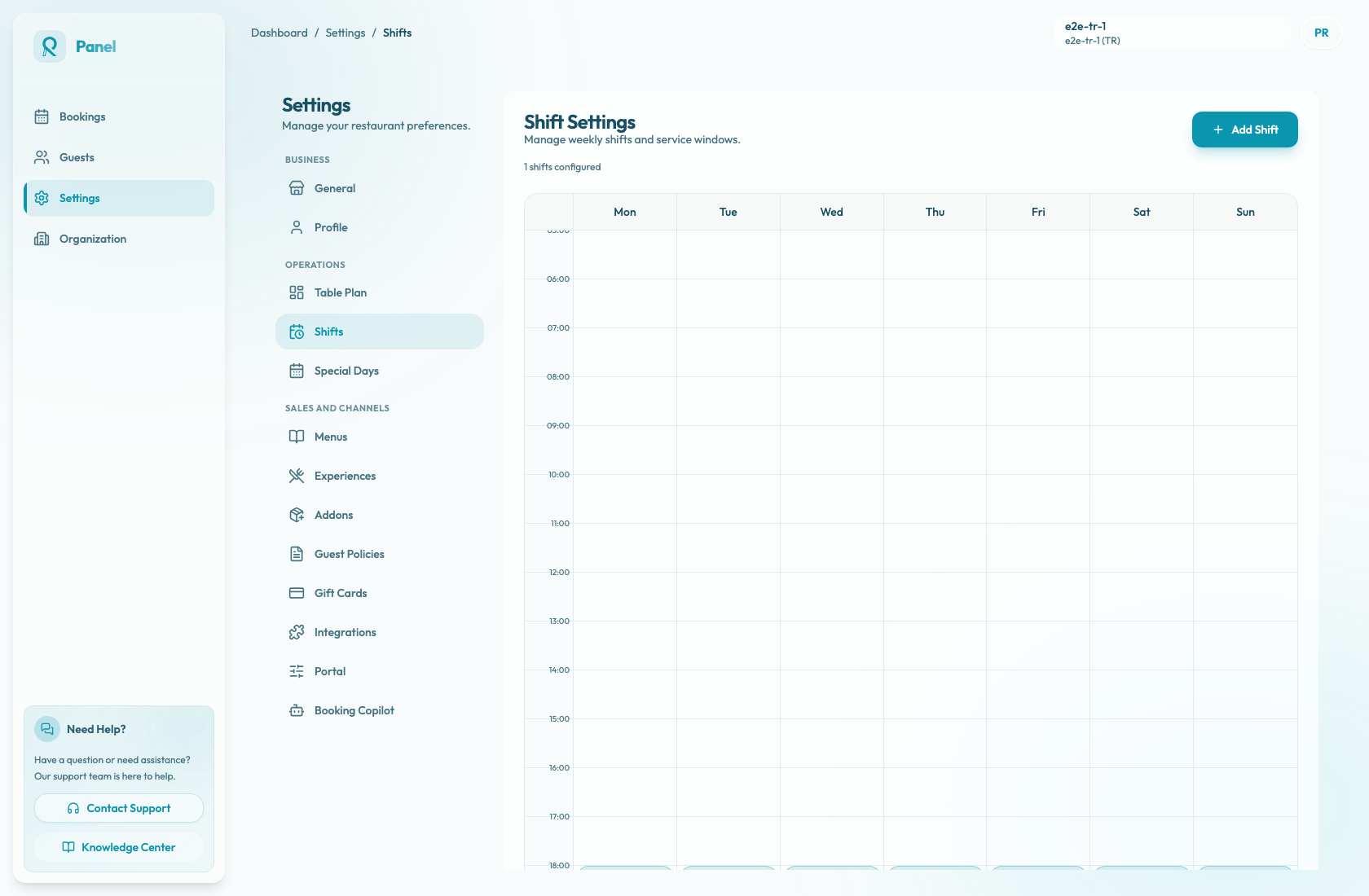
Open Settings / Shifts and compare the affected date with a date that works.
First confirm the date has a weekly shift on the correct weekday. A shift needs valid service hours and repeat days, but that only creates the time window. It does not make the shift bookable by itself.
Then open the shift and check Table Availability by Experience:
- The affected experience must have at least one table selected.
- Use Manage Tables to confirm the expected area and tables are selected.
- If the shift or experience row shows Not bookable, add table availability before checking more advanced settings.
- If the party needs joined tables, every table in the required Combinations must be selected for the experience inside that shift.
Also check Settings / General / Reservation Settings / Booking Interval. This controls the cadence of generated times. For example, a 30-minute interval will not create every 15-minute start time even when the shift is open.
Check table fit and capacity
Open Settings / Table Plan and confirm the physical inventory can seat the party:
- The selected location or area has tables with min and max capacity that fit the party size.
- Larger parties have valid Combinations when the restaurant seats them by joining tables.
- Overbooking Enabled is only enabled on tables where the team intentionally allows multiple parties at the same table.
Then return to the affected shift and review Capacity Control. If the restaurant uses Static for full shift or Interval-based timeline to hold back inventory, confirm the relevant restaurant, area, or interval still exposes capacity for the time the guest expects.
Existing bookings matter too. Confirmed reservations, pending reservation work, and temporary holds can make a table unavailable for the selected duration plus any booking gap. Use Bookings for the date and the manual reservation flow's table guidance to see whether the expected table is already occupied.
Check special days
Open Settings / Special Days whenever the affected date is a holiday, private event, one-off service, or date range exception.
Special days override normal weekly shifts for matching dates:
- Closed for the date range means guests should not see availability in that range.
- Use a special shift calendar replaces the normal weekly shifts with special shifts for those dates.
- A special shift still needs its own start and end time, Table Availability by Experience, and Capacity Control.
- A special shift with no assigned tables can be saved but remains Not bookable.
If a date works before or after the special-day range but not inside it, treat the special day as the first suspect.
If only Google is missing times
Confirm the Reslify booking page first. Google does not create separate reservation slots; it receives eligible Reslify availability.
If Reslify also has no slots, fix shifts, special days, table availability, experience rules, table plan, or existing bookings first. If Reslify shows the expected slots and only Google is missing them, check:
- Settings / Integrations and any Reserve with Google readiness status for the restaurant.
- Restaurant identity basics such as display name, phone number, address, and activation status.
- Whether the experience uses a booking mode Google can publish. Card-guarantee slots are not included in the Google availability adapter.
- Whether payment-required slots have complete payment details and currency setup.
- Whether Google has had time to ingest the latest feed after recent changes.