Troubleshooting
Booking page is not loading
Fix common causes when the public booking page, portal link, or embed page does not load for guests.
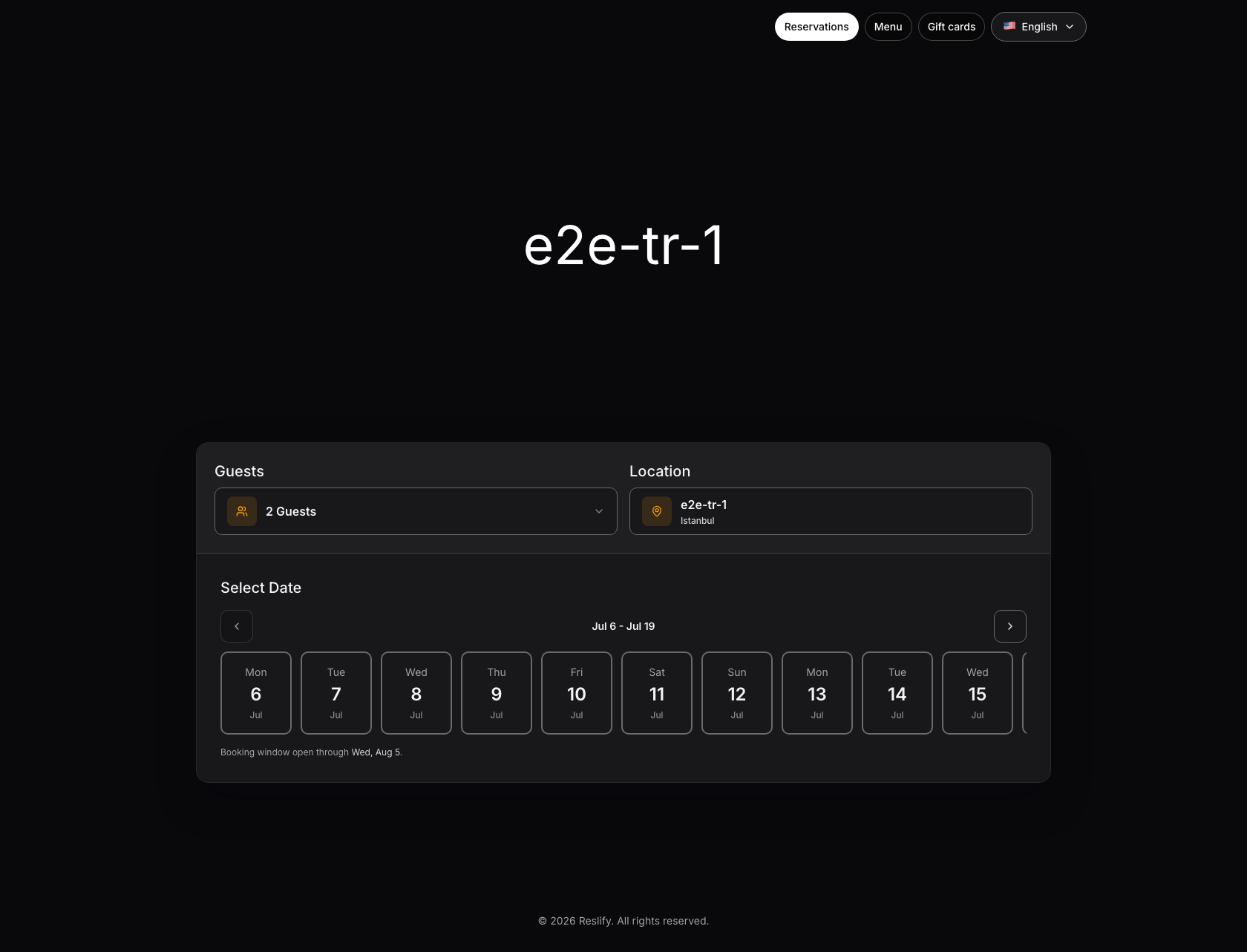
Confirm the page you are opening
Start from the active restaurant in the panel, not from an old email, QR code, social profile, or test page. Open Settings / Website / Website settings / Install and compare the destination that guests are using with the current Booking page URL.
The public booking page should use the clean restaurant page route, such as /p/main-street-bistro. Do not share a staff preview URL that contains /access?launch=...; that route is created for panel launches while access is restricted and is not a durable guest link.
If the copied URL points to a different portal domain, staging environment, restaurant slug, or old website redirect, replace it with a fresh Booking page URL from the active restaurant.
Check portal access
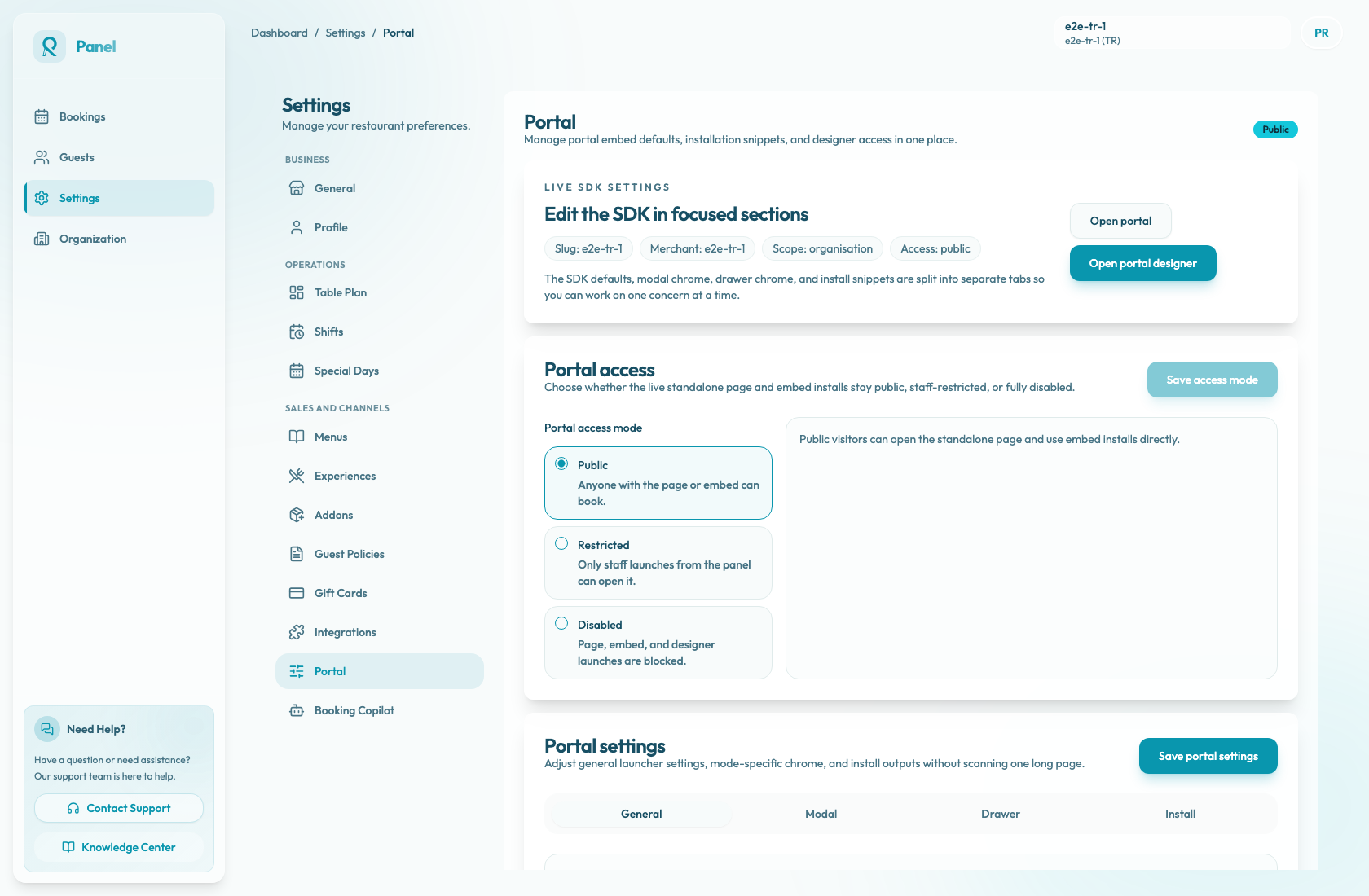
Open Settings / Website and review Online booking access:
- Public lets guests open the standalone page and use embed installs directly.
- Restricted is for staff-only preview launches from the panel. Public visitors see not found when they use the direct page URL or widget.
- Disabled blocks standalone page, embed, and designer launches.
If the page should be live for guests, set Online booking access mode to Public, choose Save access mode, and wait for Online booking access mode saved. Only owners and admins can change this mode; staff users can preview but cannot make a restricted or disabled page public.
Test again in an incognito window after saving. A signed-in panel session or a recent staff preview launch can hide an access problem during troubleshooting.
Compare page, embed, and website behavior
Use the panel actions to isolate where the failure starts:
- Choose Open website. If the standalone page does not load, keep troubleshooting URL and portal access before checking the website.
- Choose Open embed preview in the Install tab. If the standalone page loads but the embed preview does not, check portal access and the embed route.
- Open the restaurant website where the widget is installed. If the panel page and embed preview both load but the website widget fails, the problem is in the website install, CMS, origin, or page layering.
This separation matters because the public page and the website widget use related but different routes. The Booking page URL opens the standalone page; the Raw embed URL opens the iframe route; the modal, drawer, and inline snippets load booking-widget.js and mount that iframe inside the restaurant website.
Fix widget install problems
If only the restaurant website fails, open Settings / Website / Website settings / Install and compare the live website code with the current snippet.
Check these items:
- Online booking access mode is Public. Public install copy buttons are disabled while access is Restricted or Disabled.
- The website still contains the
scripttag anddata-reslify-merchant. Some website builders remove scripts or strip custom attributes. - The snippet mode matches the intended install: Modal embed script, Drawer embed script, or Inline embed script.
- For inline installs, the page still has the target container and matching
data-reslify-target="#reslify-booking". - Allowed origins in Website settings / General is intentionally empty or includes the exact website origin, including the correct
https,www, staging, preview, or production host. - The browser console on the restaurant website does not show an origin, iframe, failed config load, or
Reslify embederror. - The widget launcher, modal, drawer, or inline frame is not hidden behind website navigation, cookie banners, chat widgets, or other high z-index elements.
After changing Button text, Z-index, Modal width, Drawer side, Launcher placement, Drawer width, Offset, or Inline min height, choose Save portal settings and copy a fresh snippet if that setting is written into the website code.
Check browser and network causes
Ask the affected guest, or test from a clean browser session:
- Refresh the page.
- Open the link in an incognito or private window.
- Turn off script-blocking, privacy, ad-blocking, or translation extensions.
- Switch between mobile data and Wi-Fi.
- Try another browser or device.
If only one guest or one device is affected, the issue is usually local to their browser, extension, DNS, or network. If the same URL fails for every guest and every network, treat it as a portal access, URL, embed install, or service issue.
If the browser shows Failed to load available slots., the page loaded but the availability request failed. Retry once, then compare whether the same search works in another browser and whether the panel can load the affected restaurant.
If the page loads but shows no times
Messages such as No available slots found., a date-specific no-slots message, or no time cards after choosing party size and date usually point to availability configuration, not page loading.
Reproduce the exact guest search: party size, location or area, date, and experience. Then check:
- Experiences: the experience is active and accepts the selected party size.
- Shifts: the date has bookable service hours.
- Table Plan: tables or combinations fit the party size.
- Special Days: the date is not closed or replaced by an incomplete special shift calendar.
- Settings / General / Reservation Settings / Booking Interval: the expected start time matches the restaurant's generated slot interval.
- Bookings: existing reservations, requests, or temporary holds have not consumed the relevant tables.
- Payment, card guarantee, or request rules are complete for any experience that requires them.