Troubleshooting
A shift is not bookable
Troubleshoot a weekly or special-day shift that is visible but still marked Not bookable or produces no guest slots.
Start with what the badge means
A shift can exist on the calendar before it can accept reservations. In Settings / Shifts, Reslify shows a not-bookable warning when a weekly shift has no table availability assigned. Inside the shift dialog, the warning says the shift cannot accept bookings until at least one table is assigned.
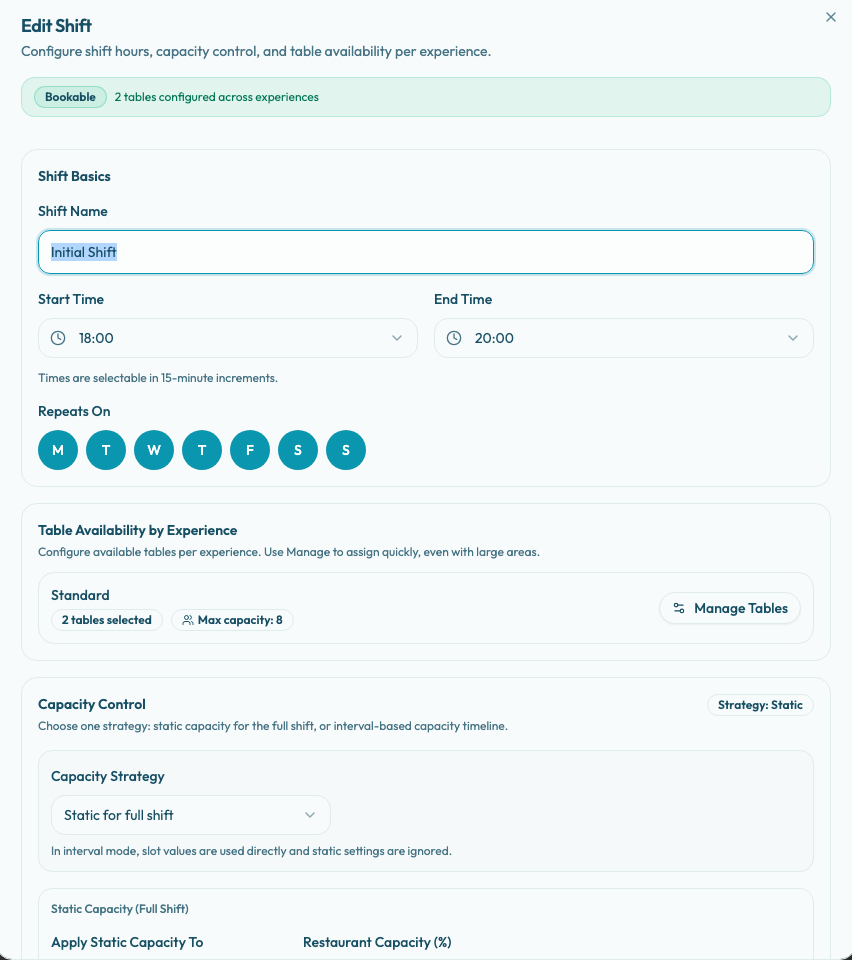
The shift-level Bookable state only means at least one experience in that shift has at least one table selected. It does not make every experience bookable. An experience row with zero selected tables is still Not bookable for that shift.
Fix a weekly shift
Open Settings / Shifts, then edit the affected shift.
Check Shift Basics first:
- The shift has the expected Shift Name.
- Start Time and End Time cover the service window.
- Repeats On includes the weekday the guest is testing.
- The time range is long enough for the experience duration and any booking gap.
Then check Table Availability by Experience:
- Find the exact experience the guest is trying to book.
- If the row shows Not bookable or zero selected tables, choose Manage Tables.
- Use Search Tables, Filter Area, Add visible, Add all, or individual table checkboxes to select the tables this experience may use.
- Review the row's selected-table count and Max capacity.
- Save the shift.
If the restaurant uses table combinations, confirm every table in the needed combination is selected for that same experience in the shift. A combination cannot help a larger party if one of its tables is missing from the experience's table availability.
Check special-day overrides
Before changing the weekly shift, confirm whether the affected date is covered by Settings / Special Days. Special days override the normal weekly shift calendar for their date range.
- If the special day is Closed for the date range, guests cannot book that date from the weekly shift.
- If it uses Use a special shift calendar, open the special-day shift and check its Bookability, Table Availability by Experience, and Capacity Control. Special-day shifts need their own table assignments.
If the shift is bookable but no slot appears
A Bookable shift is the foundation, not a guarantee that every guest search will return a slot. Test the same date, party size, location or area, and experience on the public booking page. If the page shows No available slots found, continue with these checks:
- Settings / Experiences: the experience is active, not archived, and its Reservation rules allow the requested Min Guests, Max Guests, Min Notice, Max Notice, and Booking Gap.
- Table Plan: at least one assigned table or valid combination can fit the party size.
- Capacity Control: the restaurant, area, or interval is not intentionally reduced to zero capacity for that time.
- Existing reservations or holds are not already occupying the assigned tables for the experience duration and booking gap.
- The guest has not filtered the booking page to a different location, area, or experience than the shift you updated.
Compare manual and public booking
Use the manual reservation flow to test the same date, time, experience, and party size. If the panel shows availability warnings, read them before overriding. Those warnings usually point to the rule that is causing the public page to hide the slot.