Troubleshooting
Duplicate guest email error
Resolve duplicate guest email errors by searching first, updating the right guest profile, and handling duplicate rows safely.
What the warning means
On the Guests page, Reslify checks the email in Add New Guest and Edit Guest against the guest list already loaded in the panel. Extra spaces are trimmed and the comparison is case-insensitive, so ALEX@example.com, alex@example.com, and alex@example.com are treated as the same email.
If another loaded guest already uses that email, Reslify shows Guest with this email already exists. and the profile is not saved. Editing the same guest is different: the guest can keep their own email address without triggering the duplicate warning.
The warning is a panel-side prevention step. The guest API validates the shape of an email address, but it currently does not enforce email uniqueness by itself. Duplicate guest rows can therefore still appear if records were created through a different flow or already existed before the panel check.
Search for the existing guest
When the warning appears, search before creating or changing another profile. Start with the exact email address, then try a lowercase version without leading or trailing spaces. If the email may have been entered differently, also search by name and phone number.
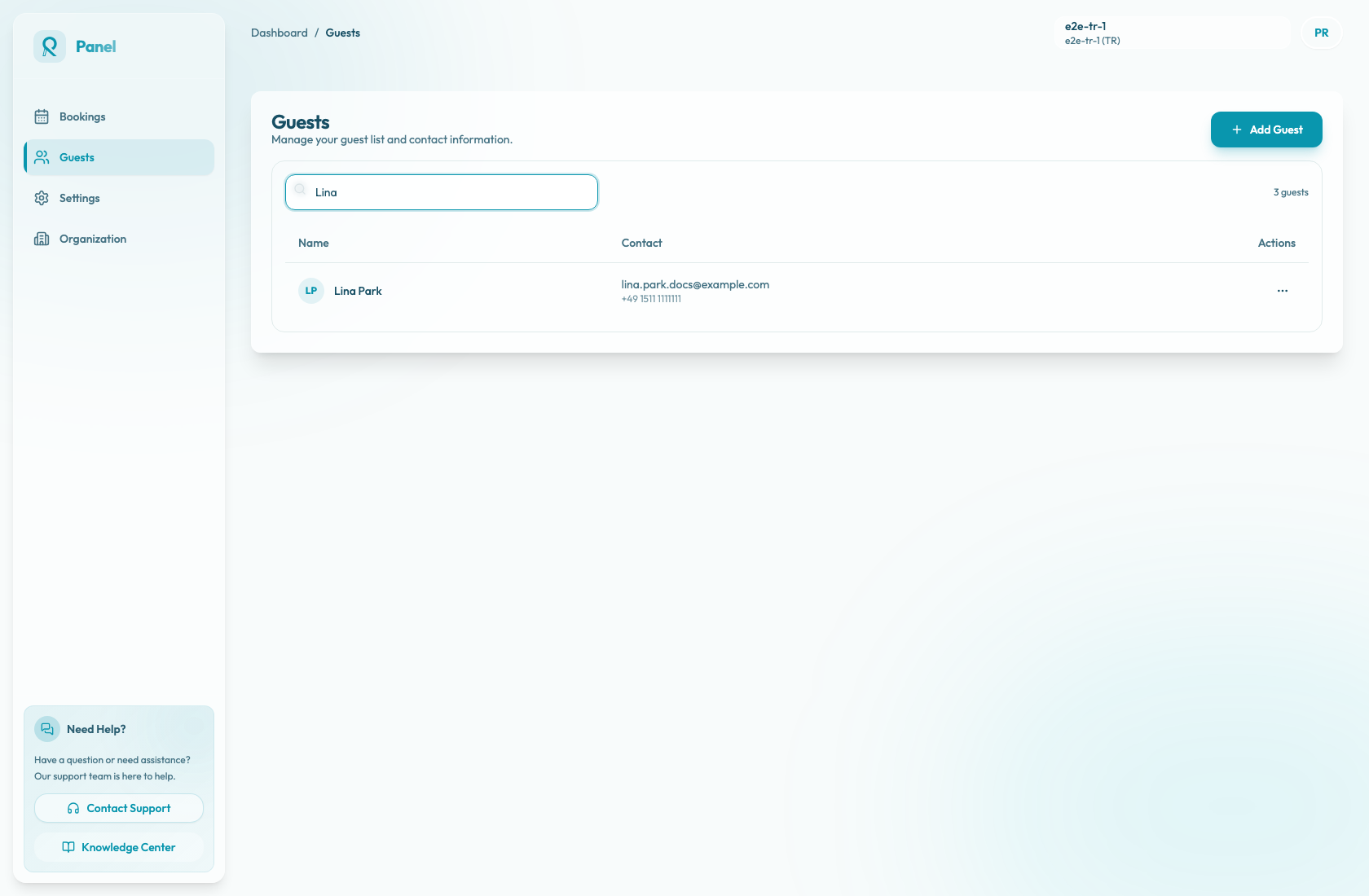
The Search guests... field filters the loaded Guests list by first name, last name, email, and phone. If the matching row appears, use that profile instead of creating another one.
Update the existing profile
Open the matching row's action menu and select Edit Details. In Edit Guest, correct First Name, Last Name, Email, or Phone, then save with Update Guest.
If the duplicate warning came from a typo, edit the existing incorrect profile rather than creating a new profile with the corrected email. This keeps future staff searches pointed at one record and avoids splitting contact details across multiple rows.
If you are only updating the same guest and keeping that guest's current email, the dialog should save normally. If the warning appears, another loaded guest row already has the email you entered; return to search and find that row before deciding which profile should be used.
During manual reservations
Manual reservation intake uses a separate flow from the standalone Guests page. In New Reservation, use Guest Selection and search with Search by name, email or phone... before choosing Add New Guest.
When the correct result appears, select it. The selected guest card shows the profile attached to the draft reservation. Use Edit Guest only to correct the selected intake details before confirmation, or Select Different Guest to clear the choice and return to search.
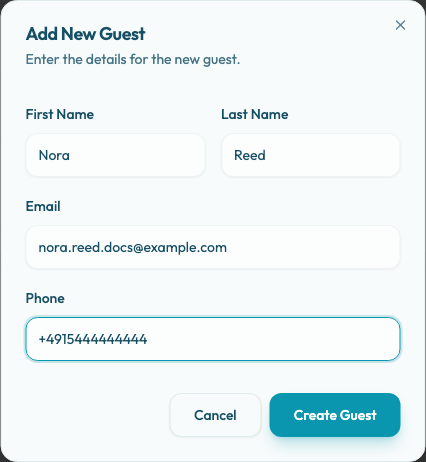
Only use Add New Guest and Save Guest in the reservation wizard after search confirms there is no existing match. Unlike the standalone Guests page dialog, this intake form does not block duplicate email addresses in the client, so it is especially important to search and select the existing guest first.
When you select an existing guest, Confirm Booking sends that saved guest identifier with the reservation. When you create a draft guest in the wizard, the reservation is confirmed with the typed guest details instead. That is useful for new callers, but it is not the safest way to attach a returning guest who already has a profile.
When duplicate rows appear
If two rows already use the same email or clearly represent the same person, pause before deleting either one.
- Search by email, phone, and likely spelling variants so you can see the possible matches.
- Decide which row staff should select going forward, usually the one with the current contact details and the active reservation context your team recognizes.
- Update that preferred row with the correct email and phone.
- If the other row is clearly unused or incorrect, remove it only when the team is confident it does not carry important operational context.
Deleting a guest removes the saved profile from the guest list. It does not rewrite existing reservation snapshots, so do not use deletion as a merge tool for records that both matter.
When to contact support
Contact support if two profiles appear to represent the same person and both have important reservation history, notes, upcoming bookings, or other context the team needs to preserve. Include both guest names, email addresses, phone numbers, and any relevant reservation dates so the records can be reviewed carefully.
Also contact support if the duplicate warning remains after refreshing the page and searching the loaded guest list does not reveal the conflicting profile.