Troubleshooting
Employee cannot access the panel
Help a team member who cannot sign in, see the restaurant, or access expected panel features.
Work through this guide in order. Panel access depends on three separate things: the employee must authenticate with the right account, the account must be attached to the right organization, and the organization must still have operational access.
Confirm the exact account email
Open Organization / Employees or Settings / Employees and search for the team member. Confirm the employee is listed and that the Email value matches the address they use on the sign-in page.
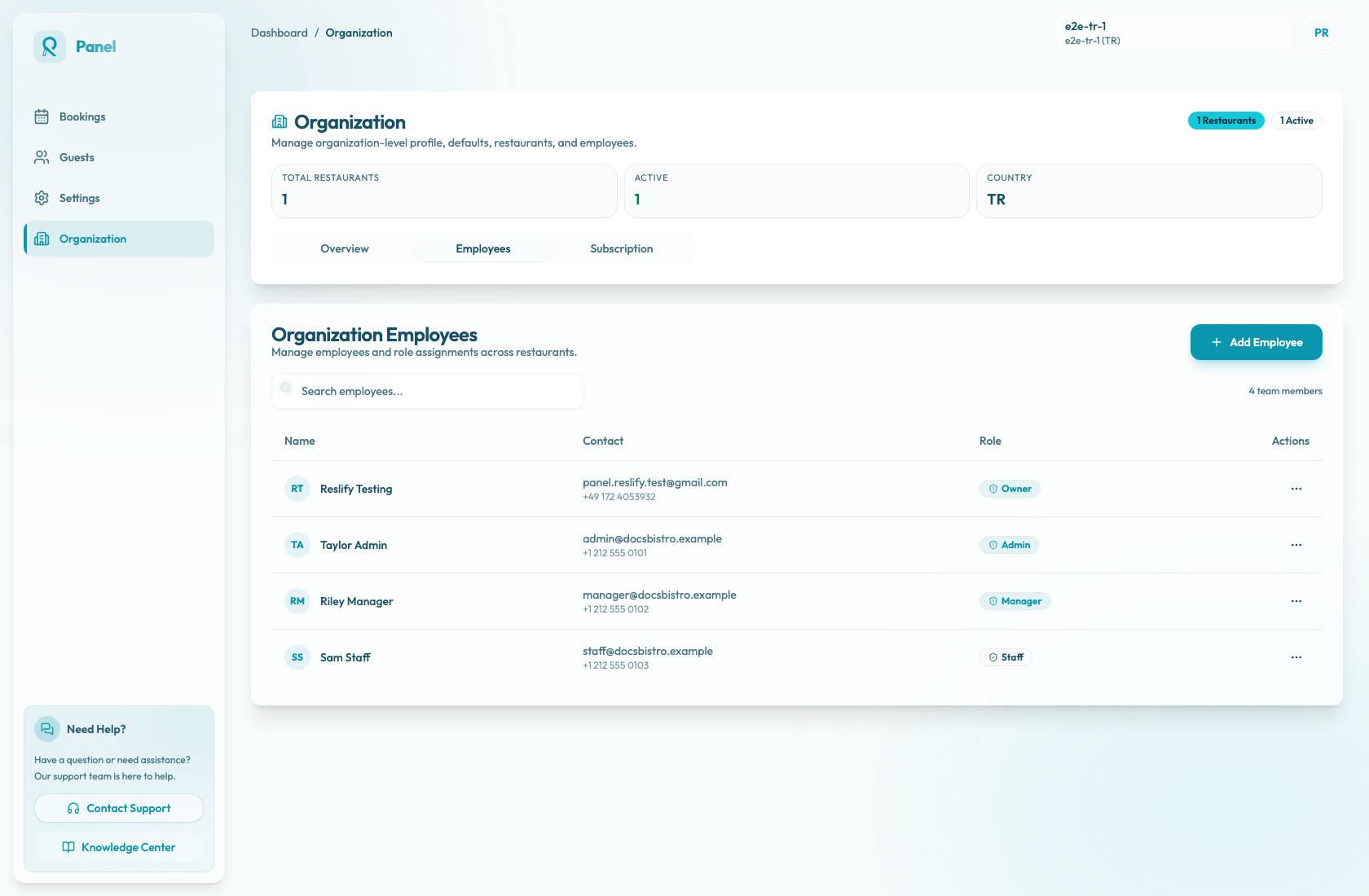
If the employee is using a different email, Reslify treats it as a different account. The account email is not necessarily the public restaurant contact email.
If the employee was added with the wrong email, delete the incorrect employee and add a new employee with the correct address. Do not rely on editing the Email field in Edit Employee to change the login email; the backend preserves the existing employee email during updates.
Choose the right password path
Ask the employee what they see after entering their email and password on the panel sign-in page.
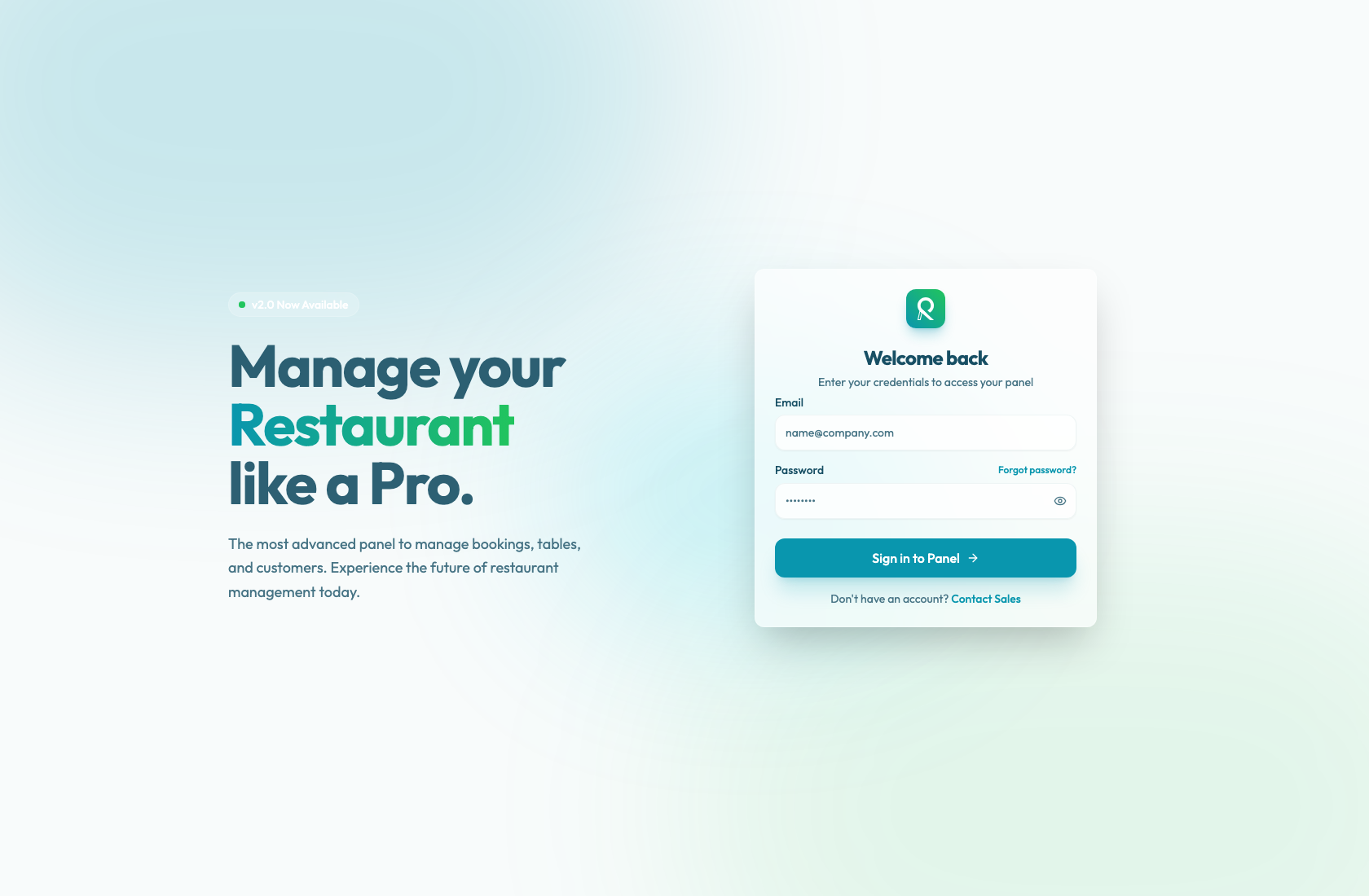
If this is their first sign-in after being added as an employee, they may see Set your new password. They should enter New password, Confirm new password, complete the password requirements, and select Set new password.
If they forgot the password, or the login flow sends them to a reset-required step, use Forgot password?. The forgot-password page sends a verification code to the account email, then asks for Verification code, New password, and Confirm new password.
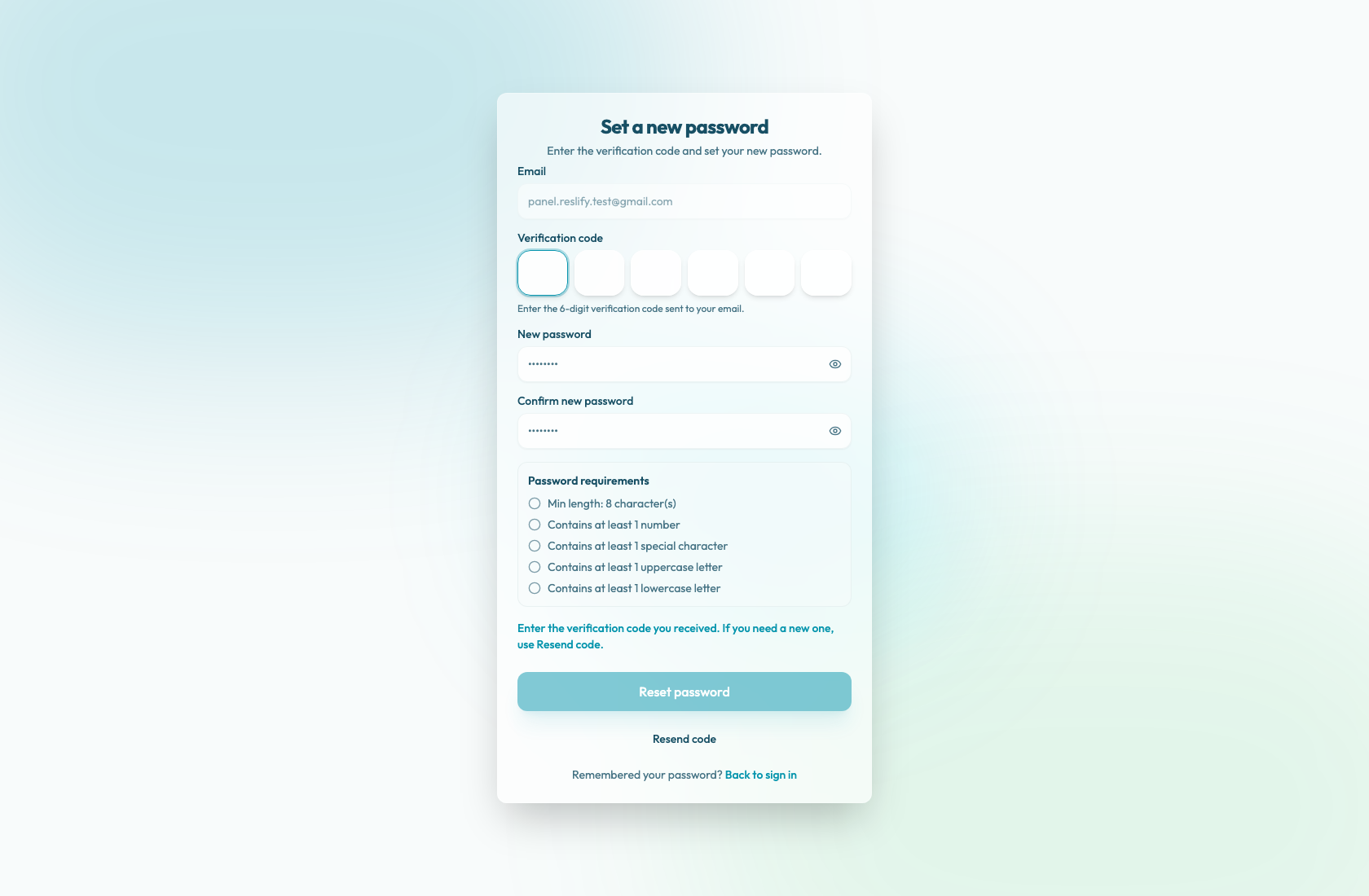
Use Resend code if the code expires or the employee starts from an older email. If the reset email never arrives, confirm the employee still exists in Employees, then check spam and spelling before escalating.
Verify the employee record and role
If the employee can sign in but cannot access expected areas, review the employee row in Employees:
- Name and Contact confirm you are looking at the right person.
- Role shows Owner, Admin, Manager, or Staff.
- Actions / Edit Details lets you update employee details and assign Admin, Manager, or Staff.
Use the least access that fits the job. Staff is the default for everyday panel users. Manager is for broader operational work. Admin is for people who manage access, billing, or sensitive configuration. Owner is created through onboarding and should stay in the approved owner-transfer or support workflow.
The normal employee screen cannot create a new Owner, promote an employee to Owner, or delete an Owner. If ownership is wrong, contact support instead of trying to repair it from the role selector.
Some product areas also have role boundaries. For example, portal access mode changes are available to Owner and Admin users; Manager and Staff users see that only owners and admins can change portal access.
After a role change, ask the employee to refresh the panel. If the old access still appears, ask them to sign out and sign back in.
Check for deleted access
If the employee no longer appears in the list, their organization access has been removed. Deleting an employee removes the employee record and deletes the matching user directory account, so a password reset alone will not restore access.
Add the employee again with Add Employee and the correct role. If adding the same email fails because the user account already exists elsewhere, escalate with the email address and organization name.
Confirm the organization and active restaurant
After authentication, the panel loads the organization from the user's access groups and then loads the selected restaurant from that organization. If the account is missing required organization or restaurant data, the panel can show Critical Initialization Error and asks the user to contact support.
For organizations with multiple restaurants, confirm the employee is viewing the correct active restaurant from the restaurant switcher.
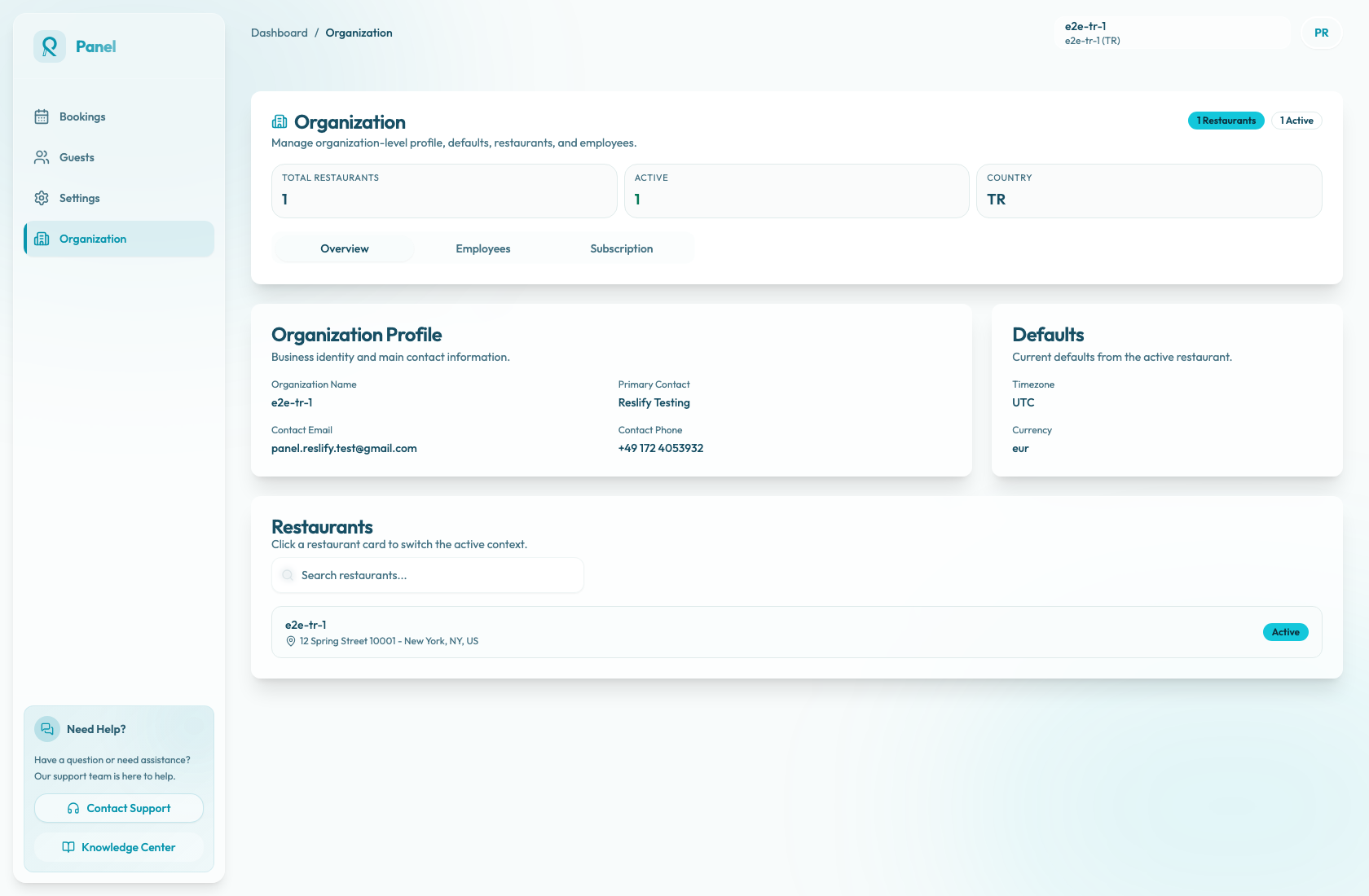
If the restaurant is not listed for the organization, changing the employee password or role will not add it. Escalate with the organization name and missing restaurant name.
Rule out billing suspension
Billing access is organization-level, so one billing issue can block every restaurant in that organization.
Open Organization / Subscription and review Access State. Active means normal operational access. Grace period means the panel is still available while Stripe retries or payment action is pending. Suspended means operational access is blocked until billing is resolved.
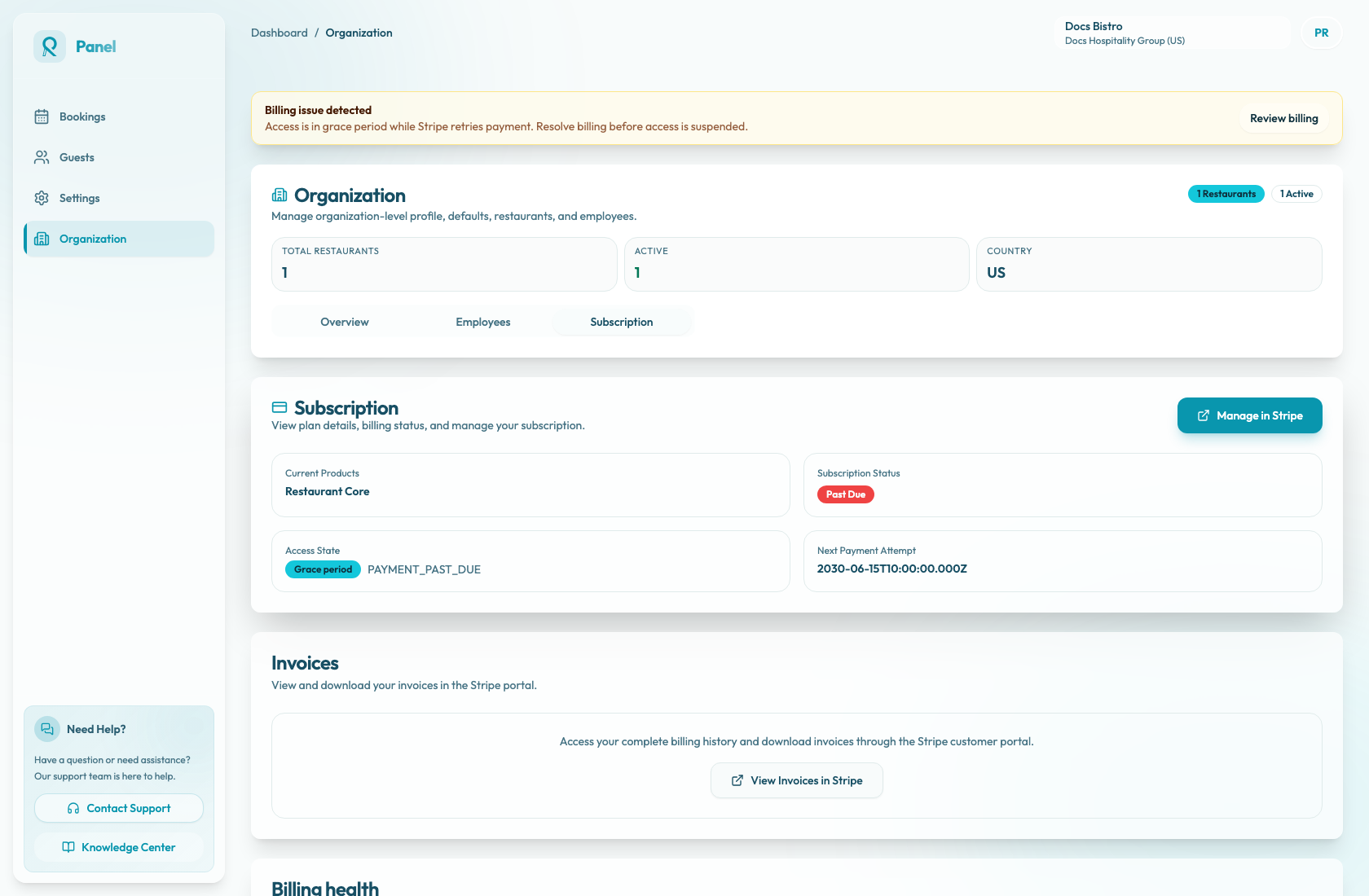
When access is suspended, the panel shows Billing only, Organisation access is suspended, and Open billing. The subscription page stays available while bookings, guests, settings, organization operations, and restaurant switching are blocked. Use Manage in Stripe to resolve payment methods, invoices, or subscription recovery.
If the subscription page shows No Active Subscription, contact support to restore or create the billing provider connection.
Escalate with the right details
Use the sidebar Contact Support action or email support@reslify.com when the checks above do not resolve the issue.
Include:
- Employee email exactly as entered in Employees.
- Organization name and restaurant name.
- Current role: Owner, Admin, Manager, or Staff.
- Whether the employee appears in Organization / Employees.
- What happens: incorrect password, verification code issue, Critical Initialization Error, missing restaurant, read-only feature, Billing only, or another exact message.
- Access State and reason from Organization / Subscription if billing is involved.
- Whether this is a first sign-in, reset password, role change, deleted employee, or owner-transfer issue.