Troubleshooting
Gift cards are disabled
Troubleshoot disabled public gift-card selling and identify the settings required before gift cards can be sold.
Confirm the disabled state
Open Settings / Gift Cards and check the page status.
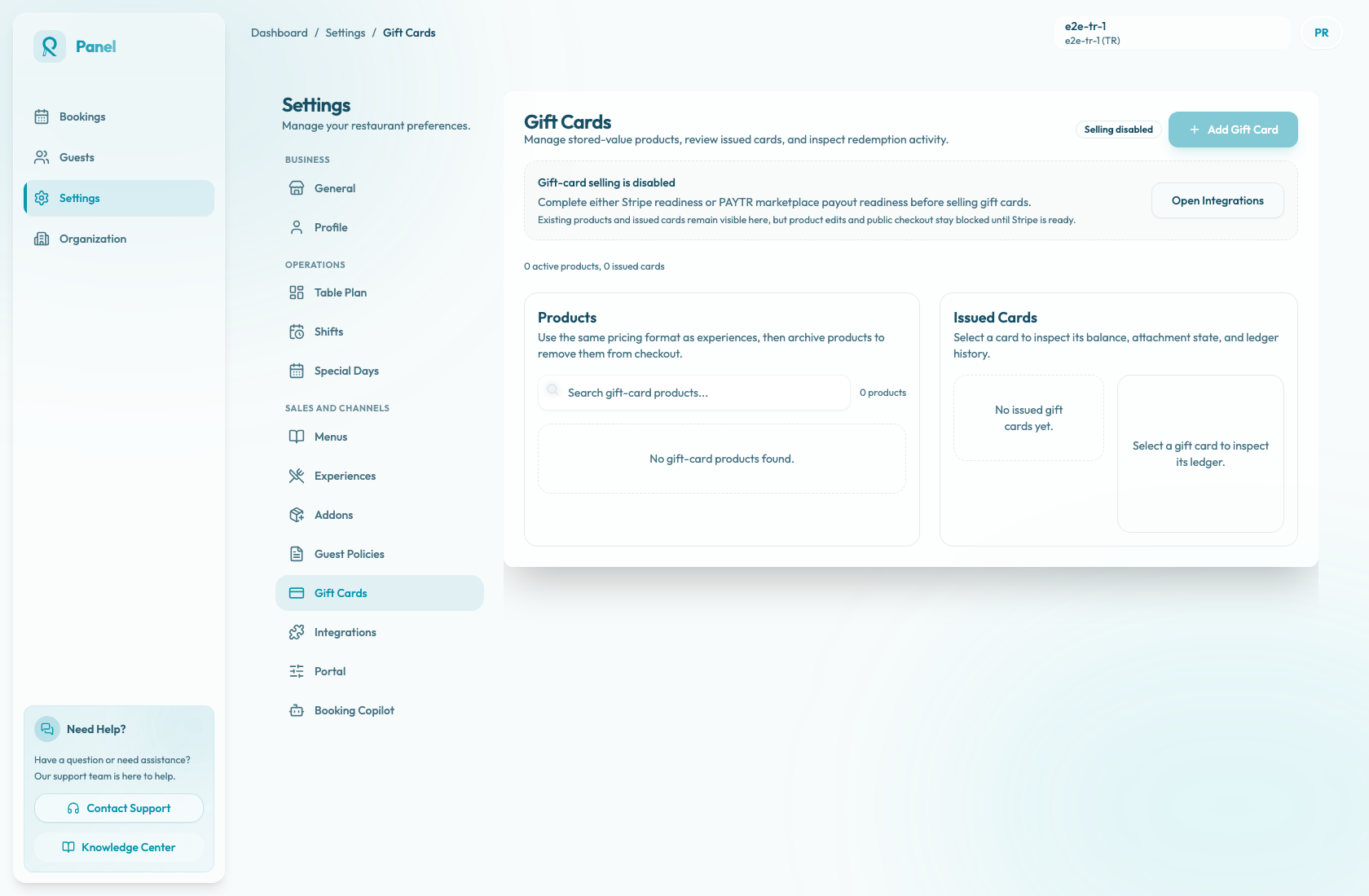
When the page shows Selling disabled, Reslify has not confirmed a gift-card-ready payment path. The page can still show existing Products and Issued Cards for review, but selling actions stay blocked:
- Add Gift Card is disabled.
- Product Edit, Archive, and Restore actions are disabled.
- Public gift-card checkout is unavailable until payment readiness is complete.
- Existing issued cards, balances, attachment state, and ledger history remain visible for support review.
Fix payment readiness first
Gift-card selling becomes eligible when either supported provider path is ready.
For Stripe:
- Open Settings / Integrations.
- Confirm the Stripe card shows Ready.
- If it shows Not connected, use Connect Stripe.
- If it shows Action required, use Complete setup.
- If it shows Under review, wait for Stripe verification, then use Refresh status.
Stripe must have connected-account details submitted and charges enabled before Reslify can sell gift cards.
For PAYTR:
- Open Settings / Integrations.
- Confirm PAYTR marketplace is available and enabled.
- Confirm Payout readiness shows Ready.
- If it shows Action required or Blocked, save valid Beneficiary name and Turkish IBAN details.
- Select Save payout settings, then retest Gift Cards.
PAYTR marketplace readiness is the supported path for PAYTR gift-card checkout. If PAYTR marketplace is not available for the restaurant, complete Stripe readiness instead.
After either provider changes, return to Settings / Gift Cards and refresh the panel. The page should change from Selling disabled to Ready.
Check active products
Payment readiness lets the restaurant manage gift-card products, but guests still need at least one sellable product.
In Products, confirm:
- At least one product is marked Active.
- The active product has the correct Title, Description, Amount, and Validity (days).
- Any optional Product Image is intentional and guest-ready.
- Products that should not be sold are Archived.
Archived products remain visible to staff in the panel, but they are removed from public checkout. If every product is archived, Gift Cards can still show Ready, but guests will not have a purchasable product.
If Add Gift Card is still disabled, go back to payment readiness before trying to create or restore products.
Test public checkout
Once Gift Cards shows Ready and at least one product is Active, test the guest path.
- Open the restaurant's public portal.
- Confirm the Gift cards navigation link appears.
- Select an active product.
- Choose For myself or Send as a gift.
- Fill in buyer details and, when sending as a gift, recipient details.
- Add the optional message if needed.
- Select Continue to checkout.
Expected checkout behavior:
- Stripe redirects the guest to hosted Stripe Checkout, then returns to the Reslify success or cancellation page.
- PAYTR opens an embedded secure payment iframe. TRY gift-card checkout requires a valid purchaser phone number.
- Processing payment means Reslify is waiting for provider confirmation.
- Payment received means the gift card was issued and should appear in Issued Cards.
- Payment not completed. means no payment was taken and no card should be issued from that attempt.
The public portal only exposes gift-card navigation when public gift-card products are available. The direct gift-card page uses the same public product list and payment eligibility checks, so an ineligible provider or archived-only catalog can make the public page unavailable or empty.
Do not confuse issued cards with new sales
A visible issued card does not prove that new gift-card selling is enabled. Issued Cards is an operational history area for existing cards. Use it to review code, balance, status, expiry, attachment state, and ledger activity.
The disabled state is about new product management and public sales. When selling is disabled, do not recreate products or publish public links until the provider status is Ready and checkout has been tested.
Escalate when readiness and checkout disagree
Contact support with the merchant name, restaurant slug, provider, and product title if any of these are true:
- Settings / Integrations shows Stripe Ready or PAYTR Payout readiness Ready, but Gift Cards still shows Selling disabled after a refresh.
- Gift Cards shows Ready and an Active product exists, but the public portal does not show Gift cards.
- The direct public gift-card page is unavailable even though the provider is ready and an active product exists.
- Checkout starts but fails before Stripe redirect or PAYTR iframe.
- The provider confirms payment, but the gift card stays on Processing payment or never appears in Issued Cards.