Troubleshooting
Google reservations are not live
Troubleshoot why Reserve with Google is not visible yet by checking activation state, profile matching, Reslify availability, sync limits, and escalation details.
Use this guide when guests cannot see a booking entry point or expected times on Google Search or Maps after Reserve with Google was requested.
Check the local integration status
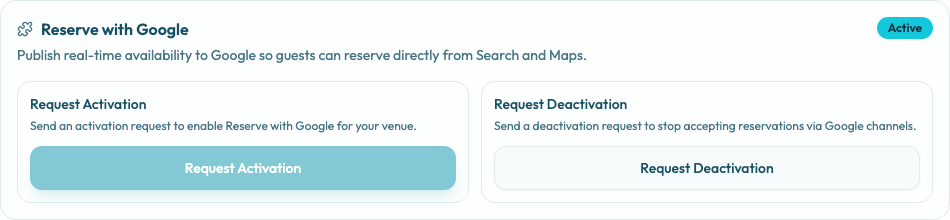
Open Settings / Integrations for the active restaurant and review the Reserve with Google card.
If the card shows Not active, Google traffic should not be expected yet. Finish the readiness checks, then use Request Activation when the restaurant is ready for Reslify support or operations review.
If the card shows Active, treat it as Reslify's local Google channel state for the restaurant, not proof that the restaurant is already live on Google Search or Maps. Production visibility still depends on Reslify enablement, merchant eligibility, Google Business Profile matching, feed processing, booking server health, and Google's publication state.
Confirm Google Business Profile matching
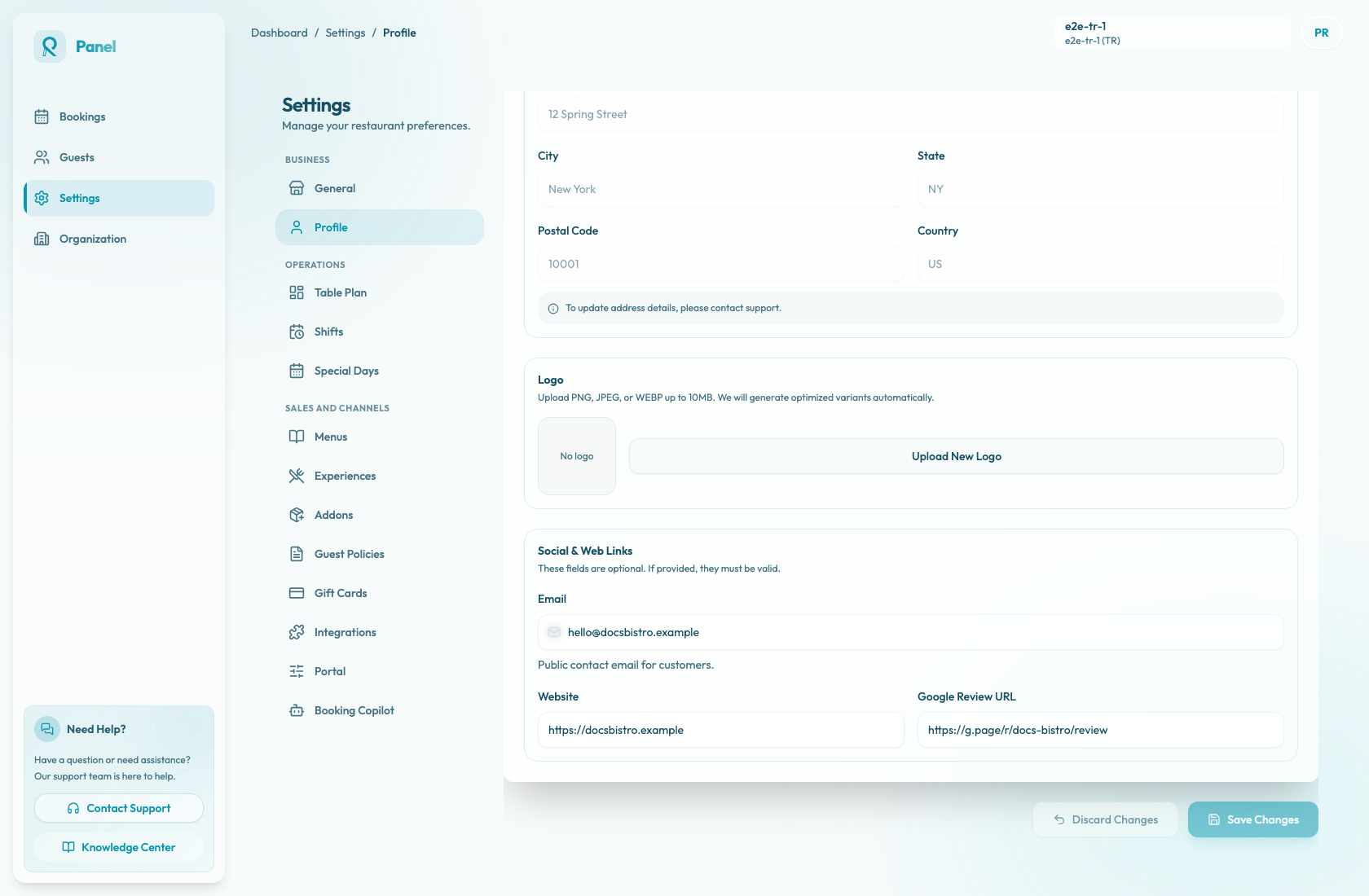
Google must be able to match the Reslify restaurant to the correct public Google Business Profile. Open Settings / Profile and compare Reslify against the live Google listing.
Check:
- Restaurant name matches the public venue name, without extra marketing text.
- Street address is complete and points to the same physical restaurant.
- Phone number is reachable and belongs to the restaurant.
- Website points to the same venue.
- Business category and public listing describe the restaurant, not a parent hotel, mall, or nearby business.
- Duplicate Google listings are not competing for the same venue.
- Google Review URL, if present, points to the correct listing. This field helps identify the public Google presence; it is not the activation switch.
If the restaurant has multiple businesses at one address, a changed name, or an old duplicate listing, resolve the Google Business Profile issue before treating Reserve with Google as broken.
Use Reslify availability as the source of truth
Google does not create separate reservation slots. Reslify publishes eligible restaurant identity, service, and availability data to Google, and Google checks live availability before creating or updating bookings.
Before troubleshooting Google, open the public Reslify booking page for the same restaurant and search the same:
- experience
- date
- party size
- duration, if the guest flow exposes duration choices
If the slot is missing in Reslify too, fix the restaurant configuration first:
- Settings / Shifts for weekly service windows
- Special Days for closures, holidays, and one-off service changes
- table capacity, combinations, and experience table availability
- active Experiences, party-size limits, duration rules, and minimum or maximum notice
- auto-approve versus request mode
- payment, deposit, prepaid, or card-guarantee policy readiness
- existing bookings or holds consuming capacity
If Reslify shows the slot and Google does not, continue with Google-specific checks.
Check eligibility and channel limits
Reslify only publishes merchants that are eligible for the Google feed. Confirm these basics before escalating:
- The merchant is a restaurant location.
- Reserve with Google is enabled for the merchant in Reslify.
- The restaurant has a display name.
- The restaurant has a phone number.
- The restaurant has a street address.
- At least one non-archived experience has a valid booking window.
Then check whether the specific slot can be sent to Google:
- Card-guarantee slots are not included in Reslify's Google availability adapter.
- Payment-required slots need valid payment payload details and currency. If those details cannot be built, Reslify skips the Google slot instead of publishing a broken link.
- Availability is generated from the current UTC day through the restaurant's maximum notice window. A slot outside the configured maximum notice window will not be in the feed.
- Slots with no available capacity are not published as bookable inventory.
- Google availability uses the experience id and service link to open the matching Reslify portal flow for Google bookings.
Allow for Google processing
Recent changes in Reslify are not always visible on Google immediately. Google's official Reservations End-to-End documentation expects complete merchant, service, and availability feeds every 24 hours, with real-time updates used for live booking and inventory changes. After feed validation, frontend visibility can still take time, and new merchants can take longer to propagate.
Wait for processing when all of these are true:
- Reserve with Google is Active in Settings / Integrations.
- The Reslify booking page shows the expected slot.
- The Google Business Profile data matches the Reslify profile.
- The slot does not use an unsupported or incomplete payment mode.
- The restaurant or slot was changed recently.
Google inventory can also show as ready or live in Google's systems while Search or Maps has not exposed the booking entry point yet. That downstream delay is a channel sync issue, not necessarily a Reslify availability issue.
Escalate with the right details
Contact Reslify support or operations when Reslify is correct but Google is still not live after processing time, or when the merchant appears mismatched, disabled, duplicated, or blocked by a Google inventory issue.
Include:
- Restaurant name and active Reslify restaurant id or slug.
- The public Reslify booking page URL.
- The Google Business Profile or Maps URL.
- Current Reserve with Google card state: Active or Not active.
- The exact date, time, party size, duration, and experience that should appear.
- Whether the slot appears on the Reslify booking page.
- When profile, availability, payment, or activation settings were last changed.
- Screenshots from Google Search or Maps showing the missing booking entry point or missing time.