Troubleshooting
Image upload failed
Resolve failed uploads for menu items, gift-card products, logos, and other restaurant images.
Identify the affected upload
Image uploads use the same shared review flow for restaurant logos, menu item images, gift-card product images, and experience images. First confirm where you were uploading, because the public impact and final save step are different:
- Logo affects active restaurant branding and profile surfaces. Logo uploads apply through the upload flow and do not need the Profile web links form to be saved.
- Menu item images affect the public digital menu. After the image uploads, save the menu with Save changes before guests see it.
- Gift-card product images affect the public gift-card checkout page and gift preview. After the image uploads, save or create the gift-card product.
- Experience images affect guest-facing booking context where the experience image is shown. After the image uploads, save the experience.
Check the file first
Prepare a PNG, JPEG/JPG, or WEBP image up to 10 MB. The panel checks the file before upload and can show Unsupported file type. Please upload PNG, JPEG, or WEBP. or File is too large. Maximum size is 10MB.
The API also rejects empty files, unsupported image MIME types, and files over 10 MB. A file can still fail processing if it is corrupted, has the wrong internal format for its extension, or cannot be read as a normal PNG, JPEG, or WEBP image.
Re-export a clean copy
If one file fails but another image uploads successfully, treat the original file as the likely issue:
- Rename the file with simple letters and numbers.
- Open the image in an editor and export a fresh JPEG or PNG copy.
- Keep the exported file under 10 MB.
- Avoid SVG, GIF, HEIC, screenshots with unusual transparency, and files with uncommon color profiles.
- If the image came from a messaging app or design tool, download or export the original file again instead of reusing a preview copy.
For logos, use a clear file with padding and contrast. For menu items, gift-card products, and experiences, a horizontal image close to 16:9 usually previews best because Reslify generates wide WebP display variants and thumbnails after upload.
Use the review dialog
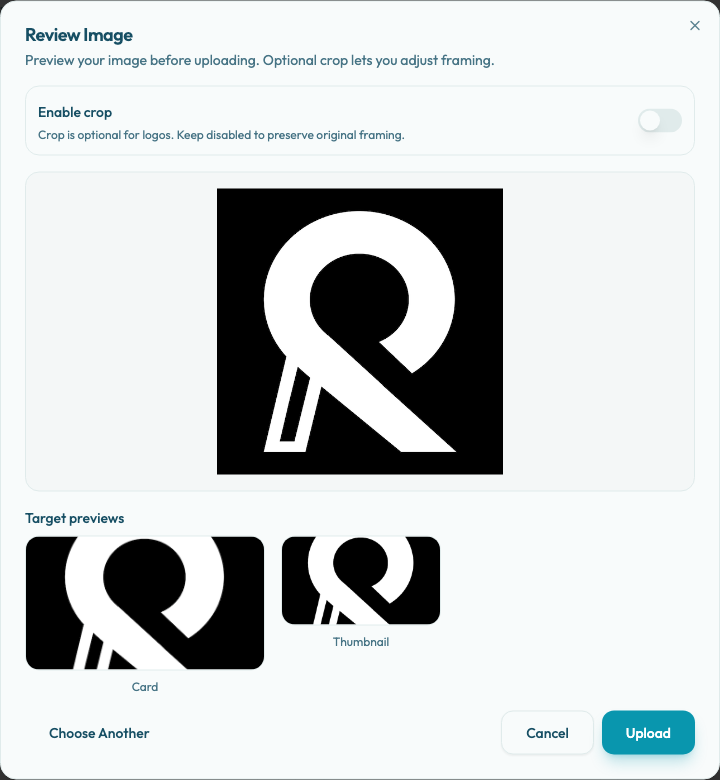
After selecting a valid file, the panel opens Review Image. Use it before selecting Upload:
- Leave Enable crop off to preserve the original frame.
- Turn Enable crop on when the subject needs tighter framing, then adjust Zoom.
- Check Target previews before uploading. Logos show Large and Small; menu item and experience images show Card and Thumbnail; gift-card product images show Card and Summary.
- Use Choose Another if you picked the wrong file.
- Use Cancel to close the dialog without starting the upload.
- Select Upload only when the target previews look right.
If the dialog opens but the preview looks blank, distorted, or badly cropped, cancel the upload and re-export the image before trying again.
Retry network or session failures
The upload flow creates a short-lived upload ticket, sends the file from the browser, then waits while Reslify processes optimized WebP variants. Network or session problems can fail any of those steps.
If the error says Upload failed due to a network issue. Please try again., check that the connection is stable, then use Retry Upload when it is available. If the upload was left open for several minutes, choose the file again so the panel can request a new upload ticket.
If refreshing shows you are signed out, sign in again and repeat the upload from the original page. If the panel says merchant context is missing or the active restaurant looks wrong, switch to the correct restaurant and retry.
If processing is slow or times out, wait a few seconds and refresh the page. If the previous image is still shown, upload the clean copy again and wait for the success message, such as Logo updated, Menu item image uploaded, Gift-card image updated, or Experience image updated.
Verify the public surface
After the upload succeeds and the related form is saved, preview the guest-facing surface:
- Open the public portal or booking page for logo and experience image checks.
- Open Open public menu for menu item image checks.
- Open the public gift-card page for gift-card product image checks.
- Check desktop and mobile if the image is important for launch.
- Confirm the image loads, the crop keeps the subject recognizable, and the public page is using the expected product, item, or experience.
When to contact support
Contact support if every image upload fails from the same browser or restaurant account, or if a known-good PNG/JPEG/WEBP under 10 MB still fails after re-exporting. Include:
- The restaurant and upload area: Logo, menu item image, Product Image, or Experience Image.
- The exact error message and whether Retry Upload appears.
- The file type, approximate file size, and whether another image uploads successfully.
- The public surface affected, such as digital menu, gift-card checkout, portal branding, or booking experience.
- The browser, time of failure, and whether you had recently refreshed or signed in again.