Troubleshooting
AI menu import failed
Fix AI menu import failures caused by unsupported files, unclear source material, or interrupted imports.
Check the upload first
Open Settings / Menus, choose AI import, and confirm the selected files match the upload rules before choosing Create digital menu.
AI menu import accepts JPG, PNG, PDF, XLSX, XLS, CSV, and XML sources. Each import needs at least one file, can include up to 8 files, and can be up to 10 MB total.
Multiple-file imports work only when every file is a JPG or PNG image. If you are importing a PDF, spreadsheet, CSV, or XML file, upload one source file per import.
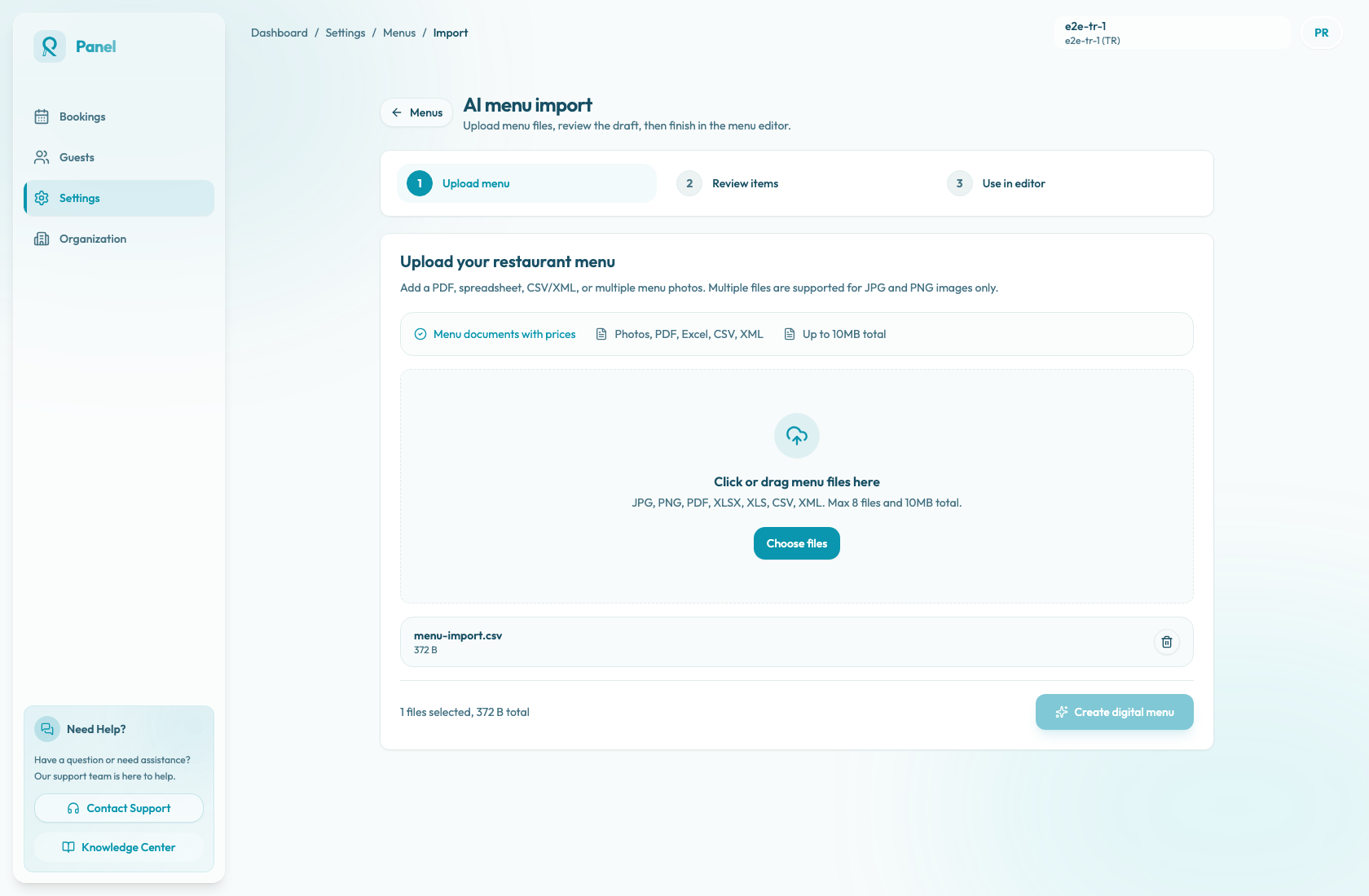
If the file picker or upload step fails, check for these common blockers:
- The source is not JPG, PNG, PDF, XLSX, XLS, CSV, or XML.
- No file is selected.
- More than 8 files are selected.
- The selected files are more than 10 MB total.
- A multiple-file import includes PDF, spreadsheet, CSV, or XML files instead of only JPG or PNG images.
- The upload ticket was created but the browser upload was interrupted.
For phone photos, convert HEIC or WebP images to JPG or PNG before retrying. For large PDFs or spreadsheets, export a smaller section and retry with a single file.
Improve source readability
If the page reaches Import failed, Reslify started processing but could not create a usable draft. AI menu import works best when item names, descriptions, prices, categories, and currency are easy to read.
Before retrying, prepare a cleaner source:
- The file is too blurry or low resolution.
- The photo is angled, cropped, shadowed, or low contrast.
- The file is password-protected or cannot be copied.
- Decorative imagery covers the menu text.
- Prices or currency symbols are missing or inconsistent.
- Multiple languages, columns, or nested sections make the item structure unclear.
- The source includes many pages of small text that make extraction likely to time out.
If possible, export a fresh PDF from the restaurant website or POS system and upload that version.
Retry with a smaller source
For long menus, split the source by section, such as lunch, dinner, drinks, and desserts.
Use one of these retry patterns:
- For menu photos, upload a batch of clear JPG or PNG images, staying under 8 files and 10 MB total.
- For PDFs, spreadsheets, CSV, or XML, export one smaller file and run one import.
- If a long source still times out, import only the most important section first, then add the remaining items in Menu Management.
Smaller imports are also easier to review because warnings, missing prices, and uncertain categories are isolated to fewer items.
Check quota and AI availability
Each restaurant has 5 AI menu imports per month. Selecting files and creating an upload ticket do not consume quota; starting the import after upload does.
If the monthly quota is exhausted, Reslify blocks new upload tickets or start attempts until quota is available again. Wait for the next monthly quota or contact support if the restaurant needs operational help with a blocked launch.
Processing can also fail after upload when:
- The AI output is not a valid Reslify menu draft.
- The AI provider rejects the file.
- The AI call times out.
- AI menu import is temporarily unavailable.
- The browser or network disconnects while the panel is uploading or polling the job.
Temporary AI runtime failures can be refunded automatically, but files that cannot produce a valid draft may still count after the import starts. If the failure message says the provider could not process the file, the import timed out, or AI import is temporarily unavailable, wait a few minutes and retry with a clearer or smaller source.
Review the draft after success
When the import reaches the review step, do not treat it as published content. Review warning messages above the draft, then correct the menu name, service label, category names, item names, and prices before choosing Use in editor.
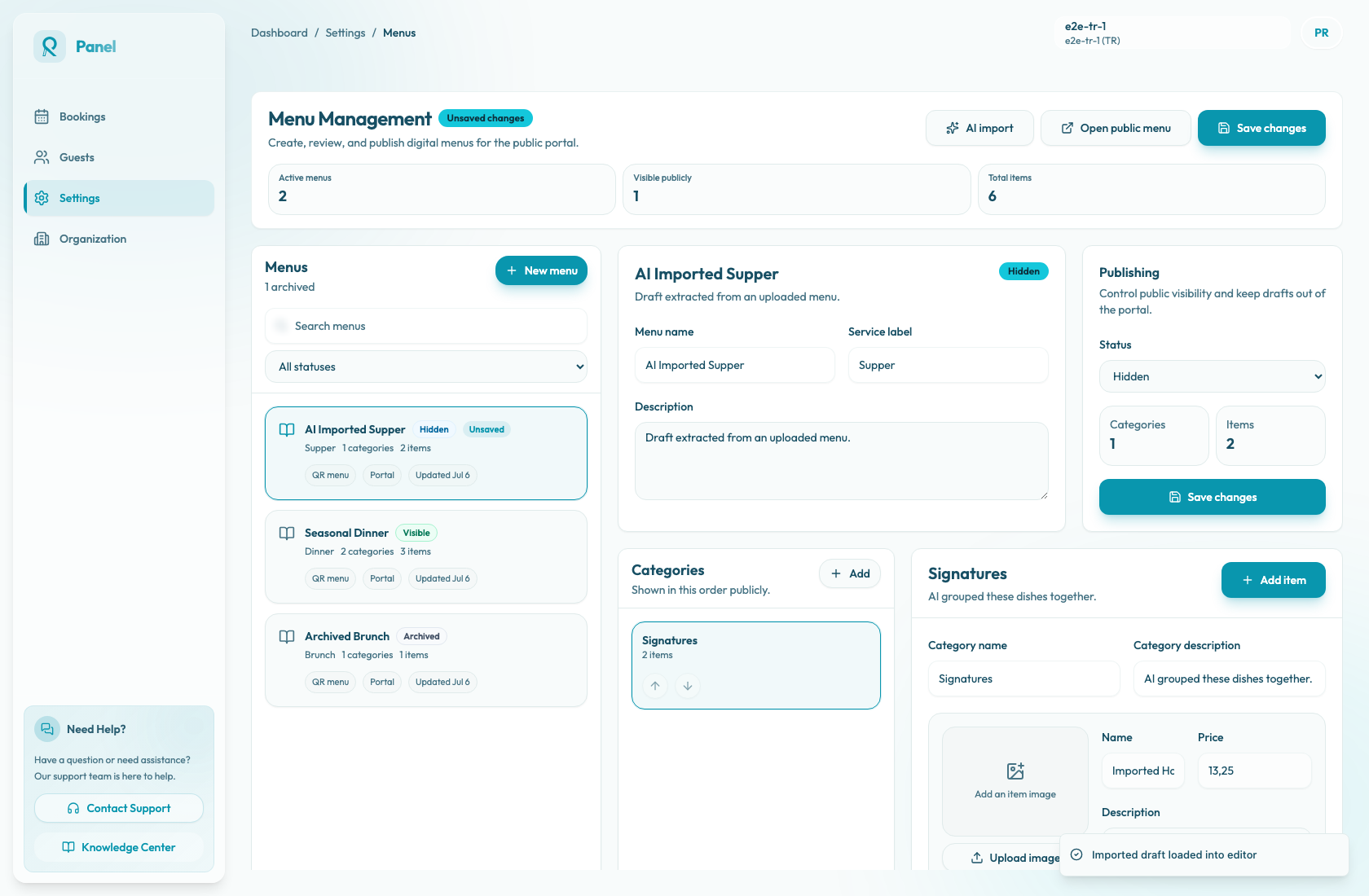
After choosing Use in editor, the draft opens in Menu Management as an unsaved menu with Hidden status. Choose Save changes before reloading or leaving the editor. Change the menu to Visible only after prices, allergens, item names, availability, and public ordering are correct.
When to contact support
Contact support if the same restaurant still cannot import after using a supported file, staying within the limits, and retrying with a cleaner smaller source.
Include the restaurant name, active restaurant shown in the panel, file type, number of files, total size, exact error or toast text, the time of the attempt, remaining quota shown in the panel, and whether Try again fails with the same message.