Troubleshooting
Reservation request is not updating
Resolve cases where a pending reservation request does not appear to accept, reject, refresh, or change status.
Confirm the expected state
A reservation request only shows Accept request and Reject request while it is still pending. After the request is accepted, rejected, cancelled by the guest, or cancelled by the restaurant, the review sidebar no longer offers those actions.
First confirm which state you expect:
- In the panel, open Bookings.
- Select the Requests tab, not the Reservations tab.
- Check the request status control: Pending, Accepted, or Rejected.
- Open the request and read the status badge in the review sidebar.
If the sidebar says No actions available, the request is no longer pending. Continue from the current status instead of retrying the old action.
Refresh the request list
Refresh before retrying any action. Reservation requests can change while the page is open because another team member reviewed the request, the guest cancelled from their reservation link, or the panel is showing cached request data.
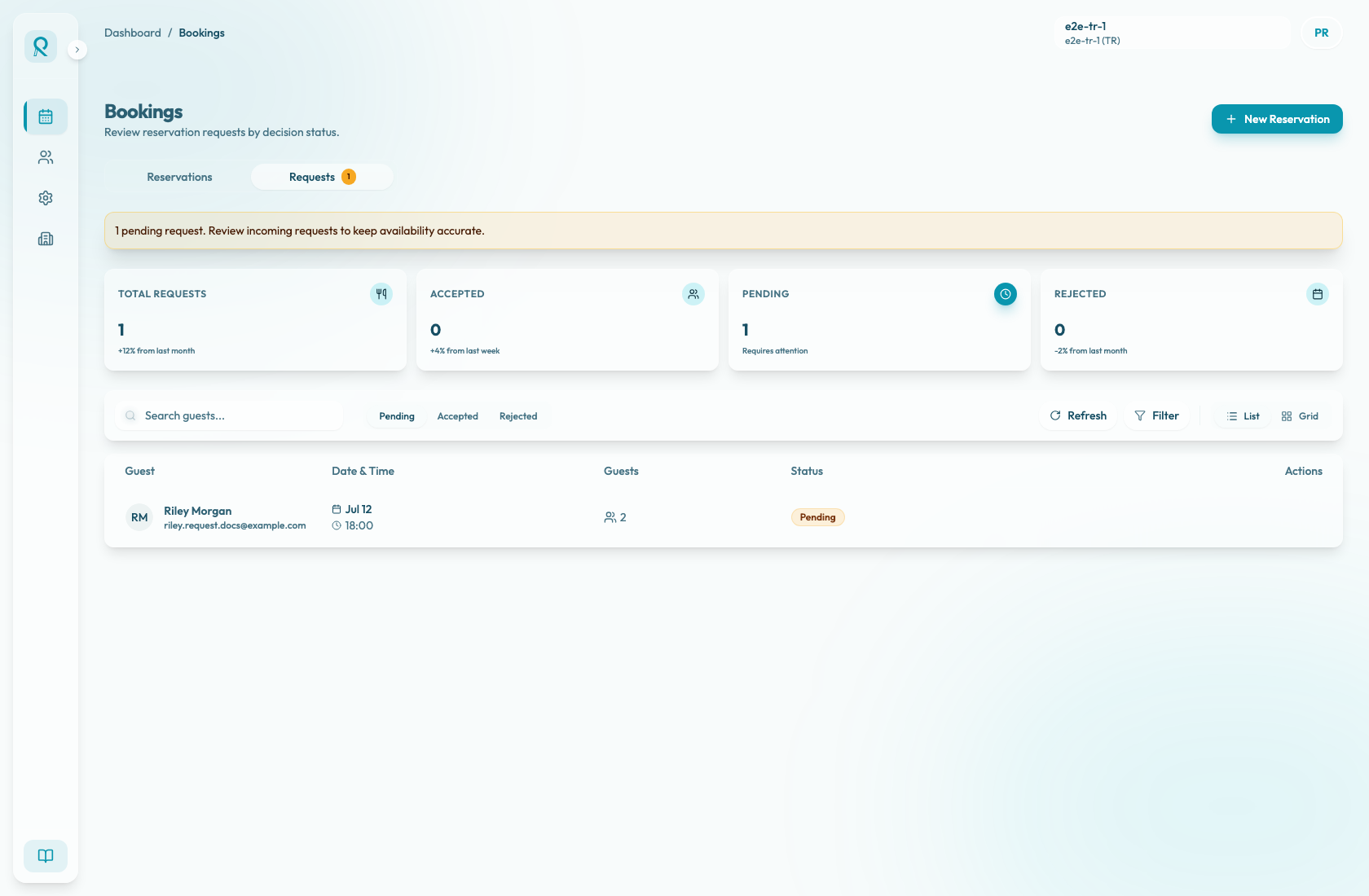
Use the toolbar Refresh button to reload reservations, the visible request list, and the pending request count. If the request review sidebar is open, you can also use the sidebar Refresh button.
After refresh:
- Stay on Pending if the request still needs review.
- Switch to Accepted if someone may have accepted it.
- Switch to Rejected if someone may have rejected it.
- Clear the Search guests... field if the row is hidden by search text.
The Requests tab loads requests from the start of day seven days ago, in the merchant timezone, and continues forward. Older handled requests may not appear there.
Reopen the request
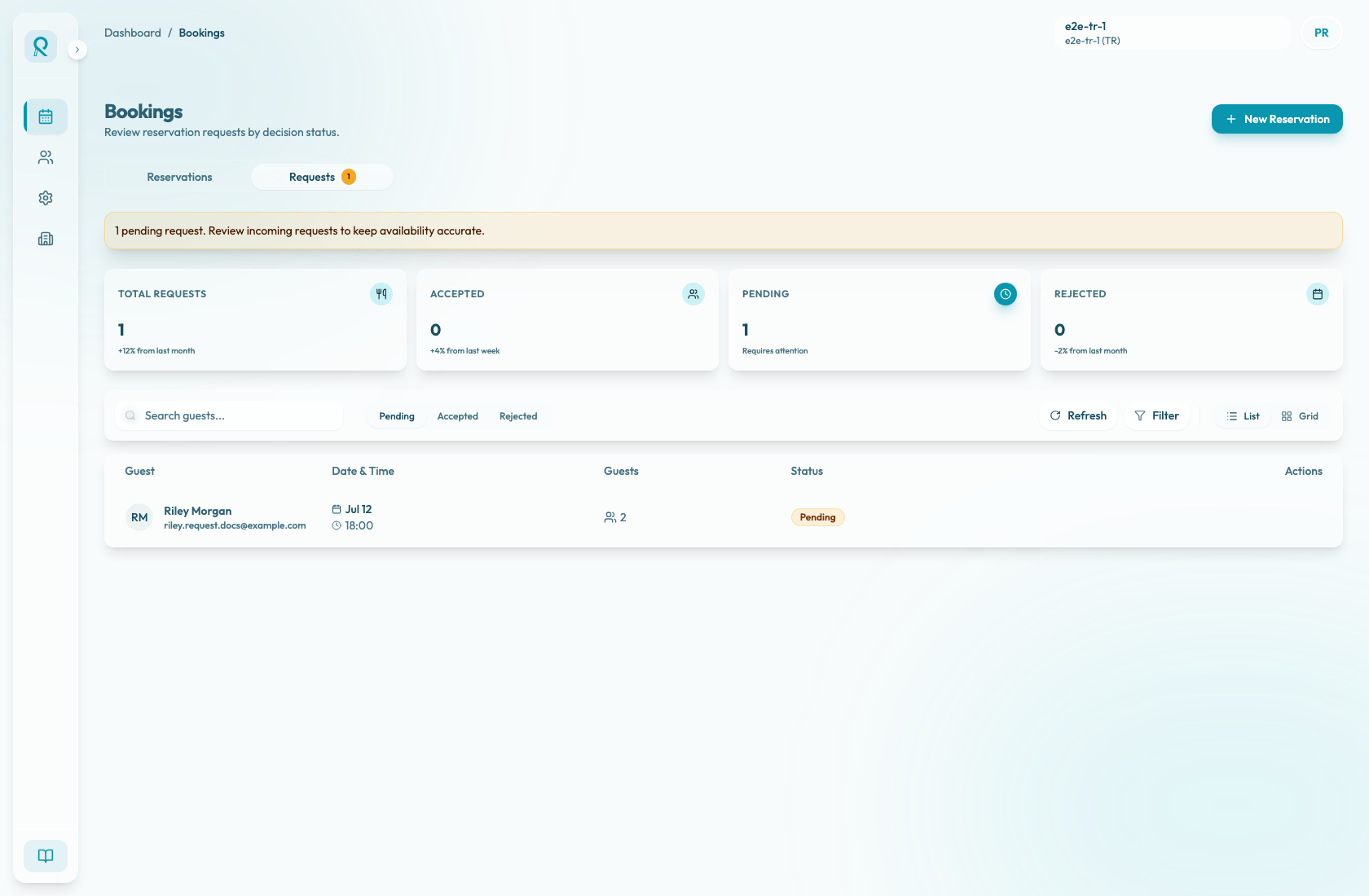
Close the reservation request sidebar, refresh the list, then reopen the row from the current status filter. This avoids acting on a stale sidebar after the request moved out of the active filter.
If the request disappears from Pending, do not keep clicking the old action. Check Accepted and Rejected first. If it is not in either filter, the guest may have cancelled it or it may have moved outside the recent request range.
Check the common causes
If an action still does not update:
- Confirm your panel session is still active and the browser is online.
- Confirm the request is still Pending. Accept and reject actions are only valid for pending requests.
- Ask whether another team member already used Accept request or Reject request.
- Ask the guest to refresh their reservation link if they are reporting a different state. Guest-facing pending requests show as Pending confirmation until the restaurant accepts or rejects them.
- If the guest cancelled from their reservation link, the request is no longer a pending request in the panel.
- Review the request Summary fields before retrying: date, time, duration, covers, experience, area, tables, and source.
- Review the Guest and Notes sections for guest contact details or special instructions before deciding whether to accept or reject.
Retry the decision safely
If the request is still pending and the operational details are correct, retry the action once from the reopened sidebar:
- Select Accept request only when the restaurant can honor the requested time, party size, experience, area, and table assignment.
- Select Reject request when the restaurant cannot accommodate the request or the guest needs to choose another time.
- Wait for the success or error message before doing anything else.
On success, Reslify closes the sidebar, refreshes the queue, and removes the request from the Pending filter. An accepted request moves to Accepted and becomes a confirmed reservation. A rejected request moves to Rejected and should not be treated as expected covers for service.
If the panel shows Failed to accept reservation request or Failed to reject reservation request, refresh and reopen the request before retrying. A common cause is that the request changed state between opening the sidebar and clicking the action.
When to contact support
Contact support if the same request continues to show the old state after a full page reload, if the panel and guest reservation link show different states after both are refreshed, or if the same action fails again after you confirmed the request is still pending.
Include:
- Guest name and contact detail.
- Reservation date, time, party size, experience, area, and tables.
- Request source shown in the sidebar.
- Current panel filter and sidebar status.
- The action you attempted and the exact error message.
- Whether another team member or the guest took any action.