Troubleshooting
Subscription access is suspended
Understand suspended, grace, and incomplete billing states, then restore access from Organization / Subscription and Stripe.
Subscription access is organization-level. When billing is unhealthy, it can affect every restaurant in the organization, not only the restaurant currently selected in the panel.
What stays available
If access is in Grace period, the panel can still be used, but the layout shows Billing issue detected with Review billing. Treat grace as urgent because access can become suspended when payment recovery fails or the recovery window ends.
If access is Suspended, operational areas such as bookings, guests, restaurant settings, employee management, and booking writes are blocked with Organisation access is suspended. The billing path stays available through Open billing, and the Subscription page is where owners or billing contacts should review the status.
Public booking creation can also become unavailable while the organization is suspended. Existing payment or reservation views may still open where they are allowed, but new online booking actions should not be treated as healthy until billing is resolved.
Open the subscription page
- From the suspended access screen, select Open billing. If the panel is still in grace, open Organization / Subscription or use Review billing from the grace banner.
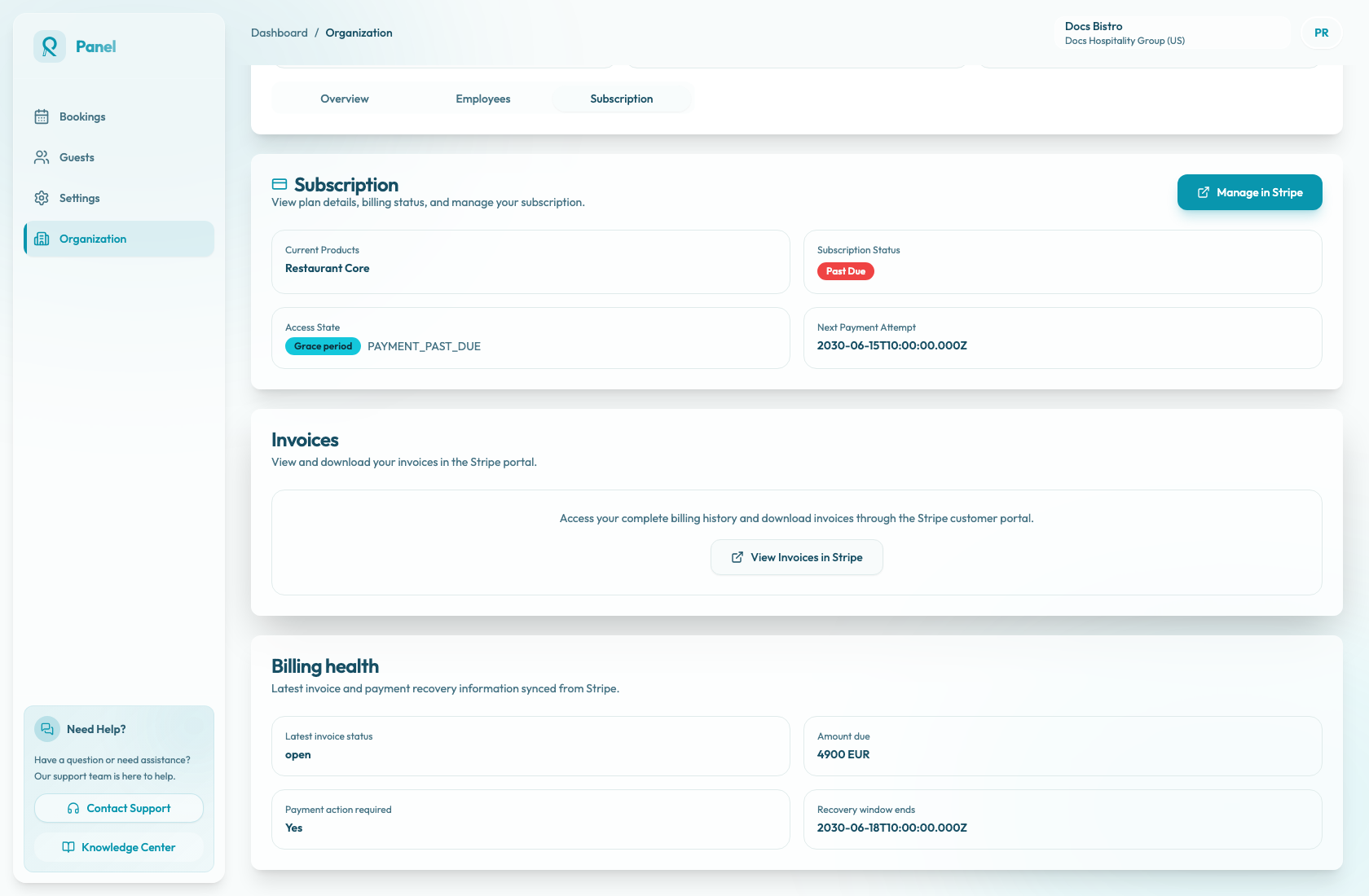
- Confirm the page header is Subscription.
- Review Subscription Status, Access State, Next Payment Attempt, and the Billing health section.
- Keep the existing organization open. Do not create a second organization or restaurant to bypass the billing state.
Interpret the access state
Use Access State first, then compare it with Subscription Status and the reason next to the access state.
Active means Reslify currently allows operational access. A cancelled subscription may still be active until the current period ends.
Grace period means billing needs action, but access is not suspended yet. Reslify enters grace when Stripe reports a payment action is required, the subscription is Past Due, or the subscription is Incomplete while a confirmation window is still available.
Suspended means Reslify blocks operational access until billing is fixed or support reconnects the subscription. Suspension can happen when there is no billing provider, the subscription is Unpaid, Expired, Paused, or cancelled after the paid period has ended.
Resolve billing in Stripe
- Select Manage in Stripe from the subscription card.
- If you need invoice history or downloads, select View Invoices in Stripe from the invoices section.
- Complete the required Stripe action, such as updating the payment method, paying an invoice, or completing payment authentication.
- Return to Reslify and refresh Organization / Subscription. Stripe updates can take a short time to sync.
- Recheck Access State, Subscription Status, Latest invoice status, Amount due, Payment action required, and Recovery window ends.
If the organization shows No Active Subscription, the Stripe portal cannot open because no billing provider is connected. Contact support instead of retrying portal actions.
Owner and admin responsibilities
Payment methods, invoices, and subscription actions should be handled by the owner, an admin, or the billing contact for the organization. Staff members who see a grace or suspended message should escalate it internally instead of changing restaurants, inviting new employees, or creating duplicate data.
Restaurant switching does not resolve billing. During suspension, the dashboard bootstrap does not load an active restaurant and switching is unavailable. In grace, switching may still work, but the billing issue remains organization-level.
Escalate to support
Contact support if Stripe does not open after allowing pop-ups, if the portal says there is no usable billing action, if No Active Subscription appears, or if the access state remains Grace period or Suspended after the Stripe payment is complete and the page has been refreshed.
Include the organization name, restaurant name, Access State, access reason, Subscription Status, Latest invoice status, Amount due, Next Payment Attempt, and Recovery window ends. If the Stripe portal showed an error or a paid invoice, include that detail too.