Troubleshooting
Booking widget is not appearing
Troubleshoot a booking widget that does not show on the restaurant website after installation.
Use this guide when the Reslify widget was added to the restaurant website but the launcher, drawer, modal, or inline booking flow is missing or unusable.
Start with a control test
Before changing website code, check the same restaurant in three places:
- In Settings / Booking widget, select Open portal. If the standalone booking page does not open, fix portal access or the booking page first.
- In Settings / Booking widget / Booking widget settings / Install, select Open embed preview. If the standalone page opens but the embed preview does not, focus on portal access, embed configuration, or the selected restaurant.
- Open the restaurant website as a guest, preferably in an incognito window. If the first two checks work but the website does not, focus on website installation, allowed origins, script blockers, or page layout.
If the widget opens and shows the restaurant brand, search controls, or messages such as No available slots found. or No available slots on this date, the widget is installed. That is an availability problem, not a missing-widget problem.
Confirm portal access
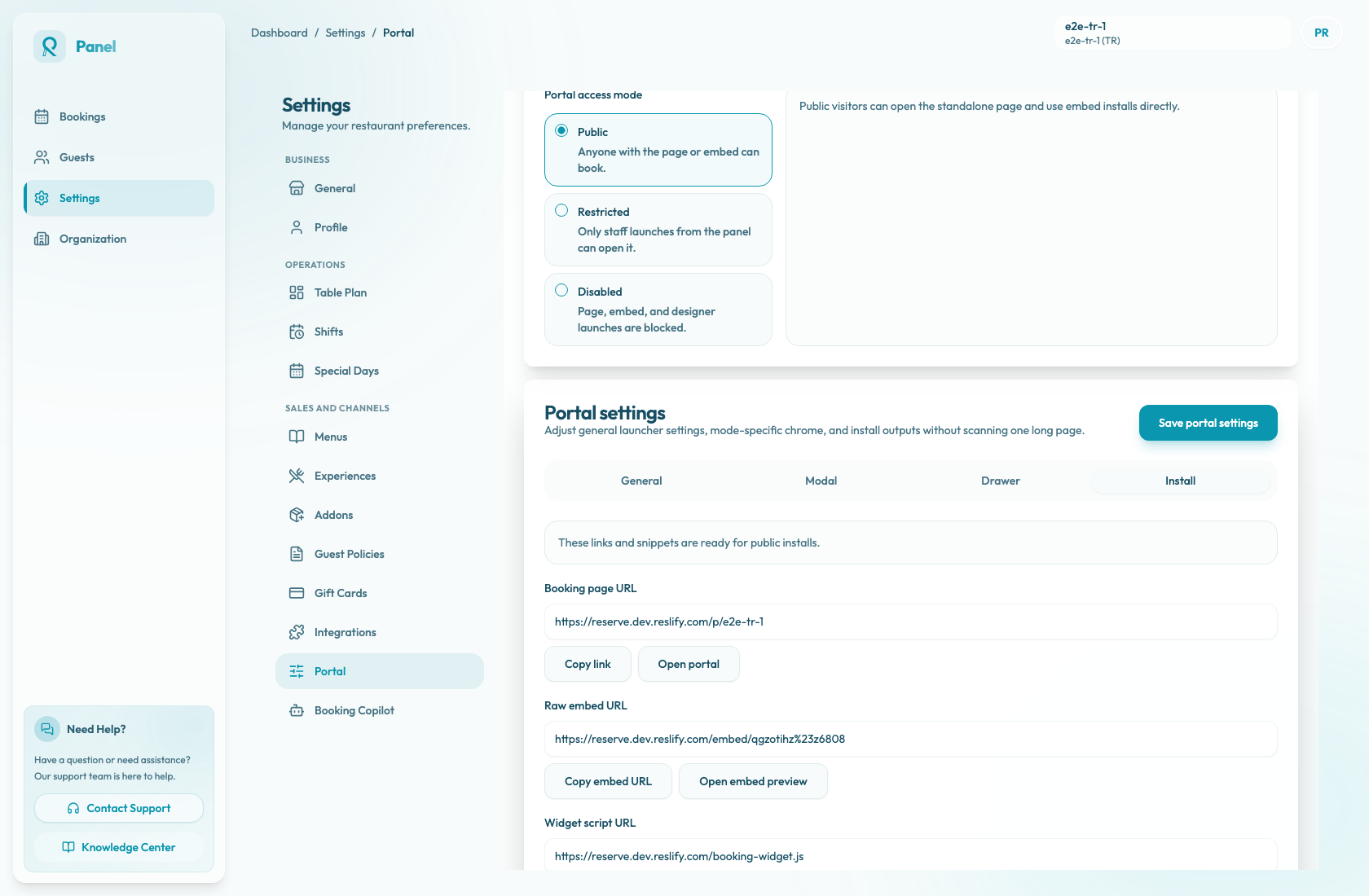
Open Settings / Booking widget and check Portal access.
- Portal access mode must be Public before guests can use the widget on the live website.
- Restricted is for staff-only launches from the panel. Public visitors opening direct links or embeds resolve to not found, and public install copy actions stay disabled.
- Disabled blocks Open portal, Open portal designer, Open embed preview, and public install actions.
Only owners and admins can change Portal access mode. Staff can use staff preview launches when access allows them, but they cannot make a restricted or disabled widget usable for public guests.
Confirm the install snippet
Open Settings / Booking widget / Booking widget settings / Install and copy the current widget snippet from the active restaurant. The install hint should say that links and snippets are ready for public installs.
Use the output that matches the website change:
- Modal embed script adds a launcher button and opens booking in a centered overlay.
- Drawer embed script adds a launcher button and opens booking from the side of the page.
- Inline embed script includes the
#reslify-bookingcontainer and mounts the booking flow directly in that page section. - Raw embed URL is mainly a preview or custom iframe target, not the normal copy-paste website install.
- Widget script URL is for developers writing their own script tag.
The generated modal, drawer, and inline scripts should contain the current data-reslify-merchant value and a data-reslify-mode value. If the website code points to a different merchant, an old portal host, or a staging script on the production site, replace it with a fresh snippet from the correct panel environment.
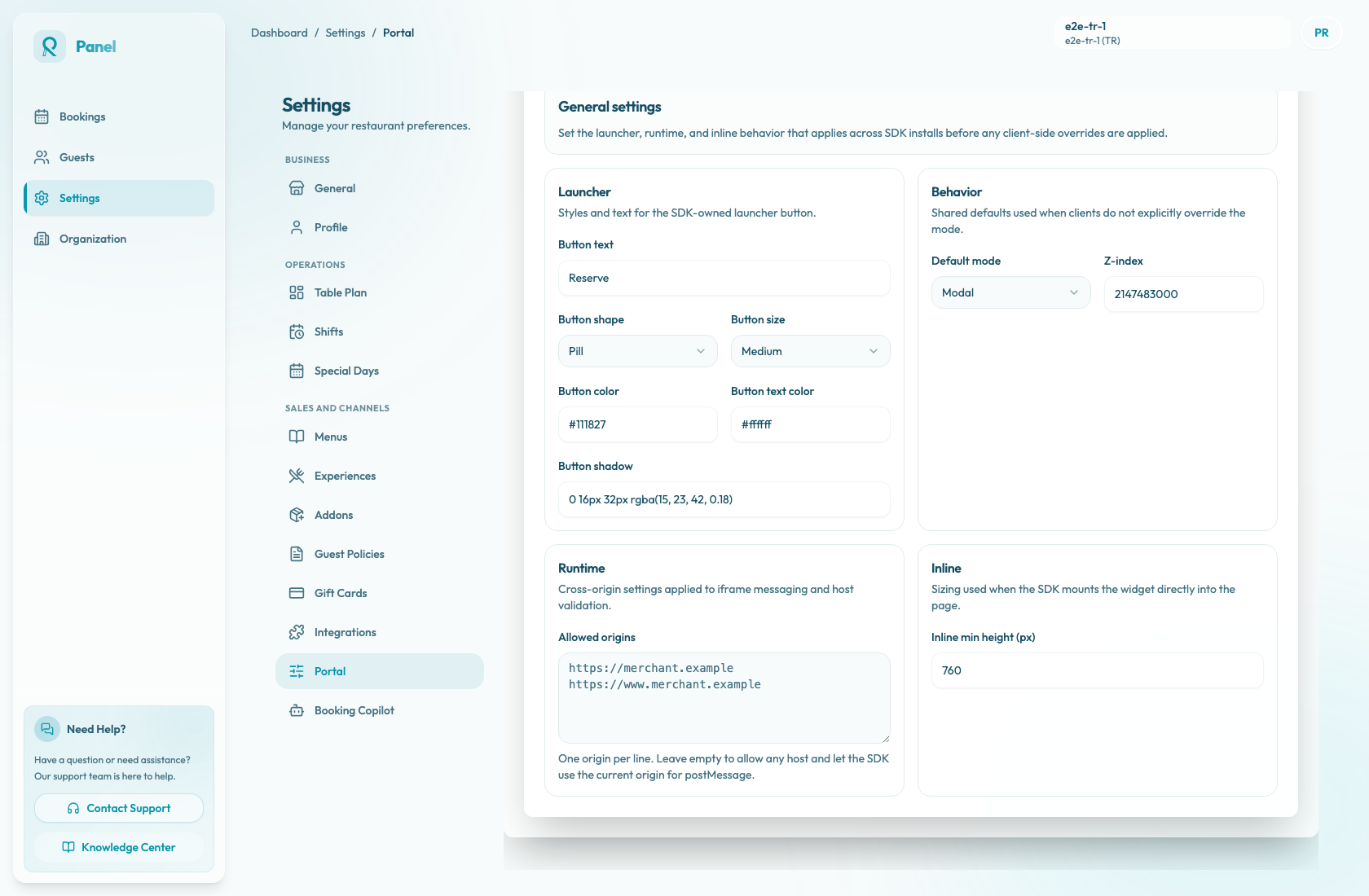
Save Booking widget settings before copying a new snippet if you changed Button text, Offset, Z-index, Modal width, Drawer side, Launcher placement, Drawer width, or Inline min height. Those values are written into the generated script attributes.
Check allowed origins
Open Settings / Booking widget / Booking widget settings / General / Runtime and review Allowed origins.
If allowed origins are configured, the browser origin must match exactly. Use the value from the website page's window.location.origin: protocol, hostname, and optional port. Do not include page paths.
Check every host where the widget should run:
- the production domain
- the
wwwversion if the site uses it separately - the staging, preview, or CMS host used by the website team
- any non-standard port used in testing
If the field is empty, the SDK allows any host and uses the current website origin for postMessage. For a live website, explicit origins are easier to audit. After saving origins, refresh the website page before retesting.
If the widget works on production but not staging, or staging but not production, compare the final browser origin after redirects. A redirect between https://restaurant.example and https://www.restaurant.example changes the origin the SDK validates.
In browser developer tools, an origin problem can appear as a console warning similar to Reslify embed: current origin is not allowlisted for postMessage.
Check layout and launcher settings
Open Settings / Booking widget / Booking widget settings / General and confirm the widget mode and launcher behavior.
- Default mode is the fallback when a website script does not set a mode. Generated snippets set their own mode, so an older script can keep using modal, drawer, or inline until the website code is updated.
- Button text controls the SDK launcher text and the modal or drawer header.
- Z-index controls whether the launcher, modal, or drawer appears above sticky navigation, cookie banners, chat widgets, and other overlays.
- Inline min height controls the minimum height of inline installs.
For Modal, the default launcher appears where the script is placed in the page. If it was pasted into a hidden template area, footer block, or collapsed CMS component, guests may not see the button.
For Drawer, the default launcher is fixed to the configured Launcher placement and Offset. Increase Z-index or adjust placement if another website element covers it.
For Inline, keep the provided div and script together unless a developer intentionally changes both the target element and data-reslify-target. If the #reslify-booking container is removed, duplicated, hidden by CSS, or placed in a tab that is not rendered on page load, the booking flow may not appear where expected.
If the widget exists but is hard to see, check launcher colors, modal or drawer chrome, and the website theme before changing availability settings.
Check website and browser blockers
If panel previews work but the restaurant website still does not show the widget, inspect the published website page:
- Confirm the
scripttag is still present after the page is published. Some CMS editors remove scripts unless they are added through a code-injection or custom HTML area. - Confirm the script still includes
data-reslify-merchant. If the attribute is removed, the browser console can warn that the merchant is missing. - In the Network tab, confirm the browser can load
booking-widget.js, the embed config route, and the embed iframe. - Check the browser console for
Reslify embed, origin, iframe, or blocked-script messages. - Test in an incognito window with extensions disabled. Ad blockers, privacy extensions, strict tracking protection, corporate filters, or a website content security policy can block third-party scripts or iframes.
- If only one guest is affected, ask them to try another browser, another device, or a different network. If every browser fails on the same website page, treat it as a website install or host configuration issue.
Separate installation from availability
Use the result to choose the next investigation:
| What you see | Likely area |
| --- | --- |
| Open portal fails | Portal access, selected restaurant, public page, or support escalation |
| Open portal works but Open embed preview fails | Embed access, portal access token, merchant ID, or embed route |
| Both panel checks work but the website fails | Website snippet, allowed origins, script blockers, z-index, or page layout |
| Widget loads but shows no times | Availability, shifts, special days, table availability, experience rules, existing bookings, or temporary holds |
| Modal or drawer opens behind another element | Z-index, launcher placement, website overlays, cookie banner, or chat widget |
| Inline section is blank or too short | #reslify-booking target, hidden container, removed script, or Inline min height |
Do not keep changing the website snippet if the standalone booking page and widget both load but show the same no-slot message. Reproduce the guest's party size, date, location or area, and experience, then troubleshoot availability from Bookings, Settings / Shifts, Settings / Special Days, Settings / Table Plan, and Settings / Experiences.
When escalating to support or a website developer, collect the website URL, the value of window.location.origin, the active restaurant, the portal access mode, the snippet field used, and any browser console or Network errors.